
Davao City GovernmentServices & Online Guides
Clear guidance for permits, civil records, assistance, payments, and online applications.
Explore practical guides to selected Davao City government services. Check requirements, follow step-by-step instructions, and find links to official government websites and application systems.
Independent information website. DavaoCityPortal.org is not affiliated with or endorsed by the City Government of Davao.
Find the Right Davao City Government Service
Need a business permit, civil registry document, or government assistance? Davao City offers different services for residents and businesses. Each service may have its own requirements, application process, and official website. Here’s how to get started.
Choose Your Service
Find the service that matches your needs, whether you’re applying for a permit, requesting a document, or seeking assistance.
Check the Requirements
Review the necessary documents, eligibility conditions, and application instructions before starting your request.
Follow the Official Process
Use the appropriate government website or office. Our guides explain the available steps and include visual examples where helpful.
Good to know: Requirements, service availability, and application procedures may change. Always confirm the latest information on the relevant official government website before submitting documents or payments.
Davao City Online Services
Davao City offers separate online systems for permits, tax certificates, payments, and public concerns. Choose the service you need below to access its official website. Some applications may require an account, supporting documents, or additional verification.
Business Permits
Apply for a new business permit or renew an existing one through Davao City’s online business permit and licensing system. Review application requirements and complete the available online procedures.
Visit Official SystemBuilding Permits
Access Davao City’s online building permit system to submit applications and supporting documents, review assessment instructions, and check available application status tracking services.
Visit Official SystemOnline Cedula Application
Access the official application system for a Community Tax Certificate (CTC). Enter the requested information and follow the portal’s instructions for processing, validation, and any applicable payment.
Visit Official SystemOther Permits & Tax Receipts
Find government application systems for occupational permits, special permits, and Professional Tax Receipts (PTR). Choose the appropriate service for your transaction.
Explore Official ServicesOnline Payments
Review official payment information for eligible Davao City taxes, permits, and government charges. Check how to obtain an Order of Payment and follow the authorized payment instructions.
View Payment InformationDavao City Reports
Submit community concerns, complaints, requests, or inquiries through the City Government of Davao’s official reporting platform. Register when required and use the available transaction tracking options.
Visit Official SystemREGISTRATION WALKTHROUGH
How to Register on the Davao City eScholar Portal
Applying for a Davao City scholarship? The official eScholar system lets applicants create an account before completing their scholarship application. Follow this guide to open the registration form, enter your details, verify your email, and complete the account creation process.
Before You Start
Have the following details ready so you can complete the official registration form without interruptions:
- Your full name
- Intended school or university
- Mobile number
- Residential address
- Facebook profile link
- A working email address you can access
Open the Official eScholar Website
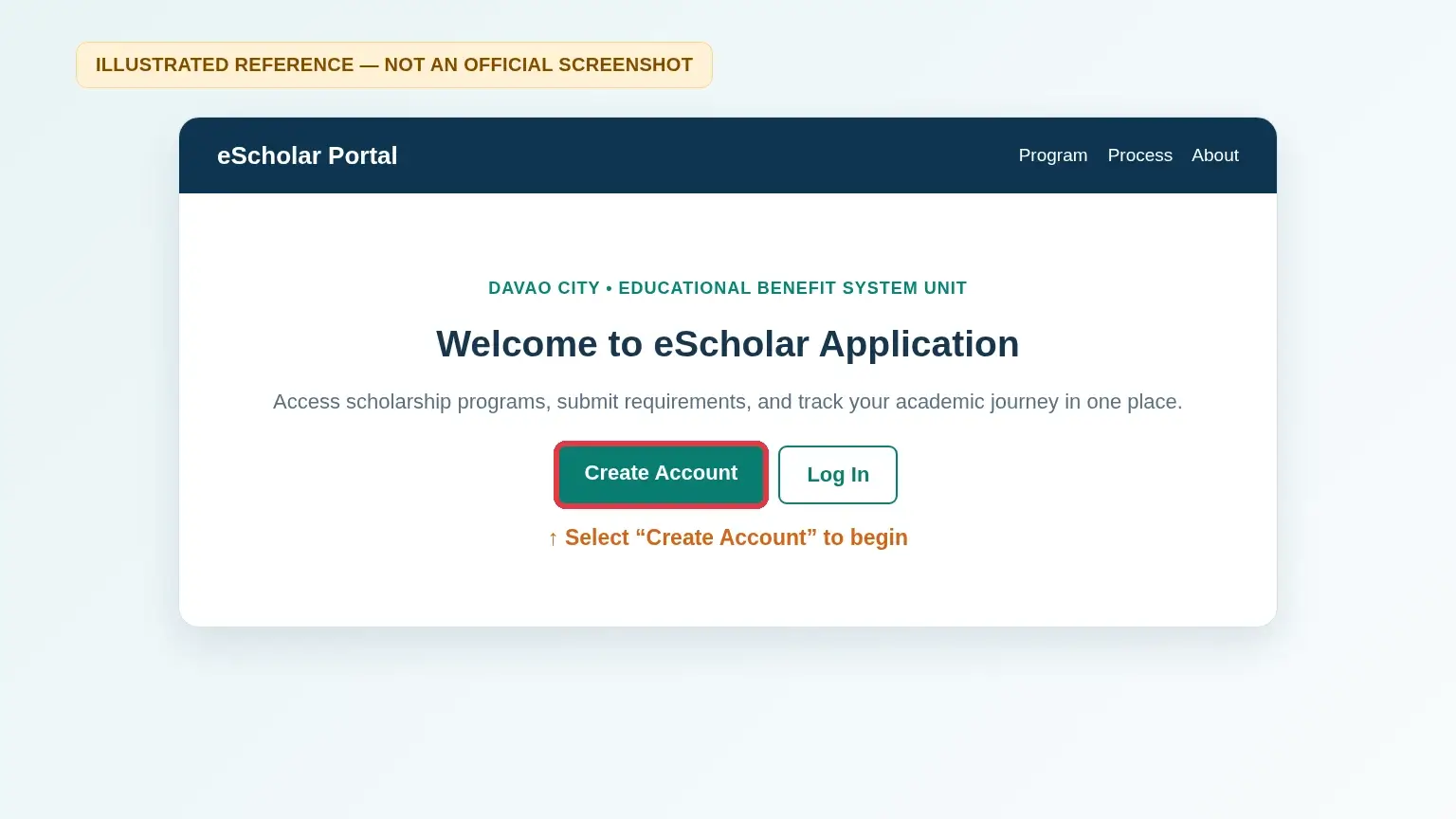
Go to the official Davao City eScholar website. On the welcome screen, select Create Account to open the registration form.
If you already have an eScholar account, choose Log In instead. You do not need to register again.
Open Official eScholar Portal ↗Fill In Your Account Details
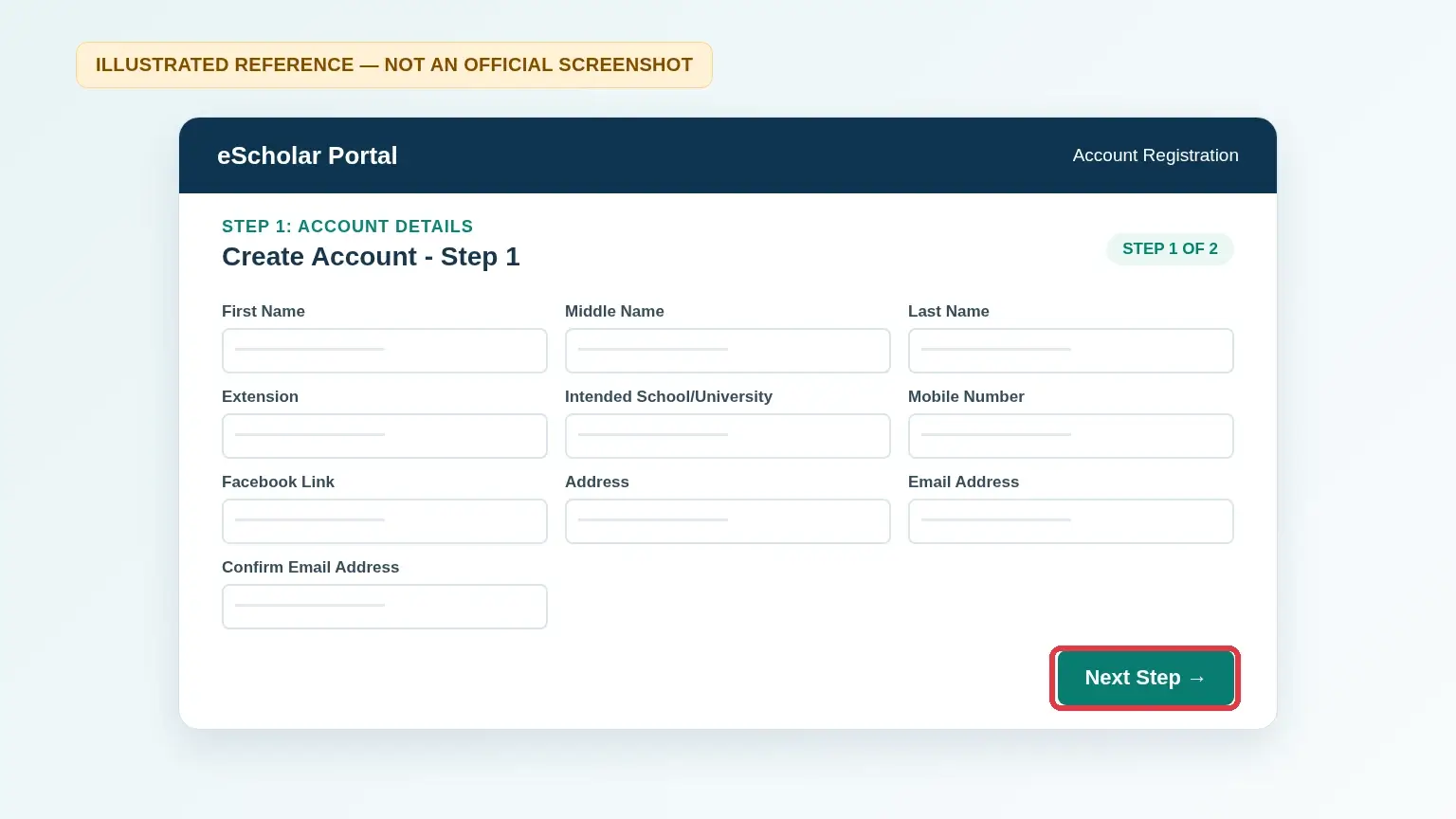
The Account Details form asks for your first, middle, and last names; name extension if applicable; intended school or university; mobile number; Facebook profile link; residential address; and email address.
Enter the same email address in the Confirm Email Address field. Make sure your contact information is accurate and accessible.
Review the form carefully, then select Next Step to continue.
Verify Your Email
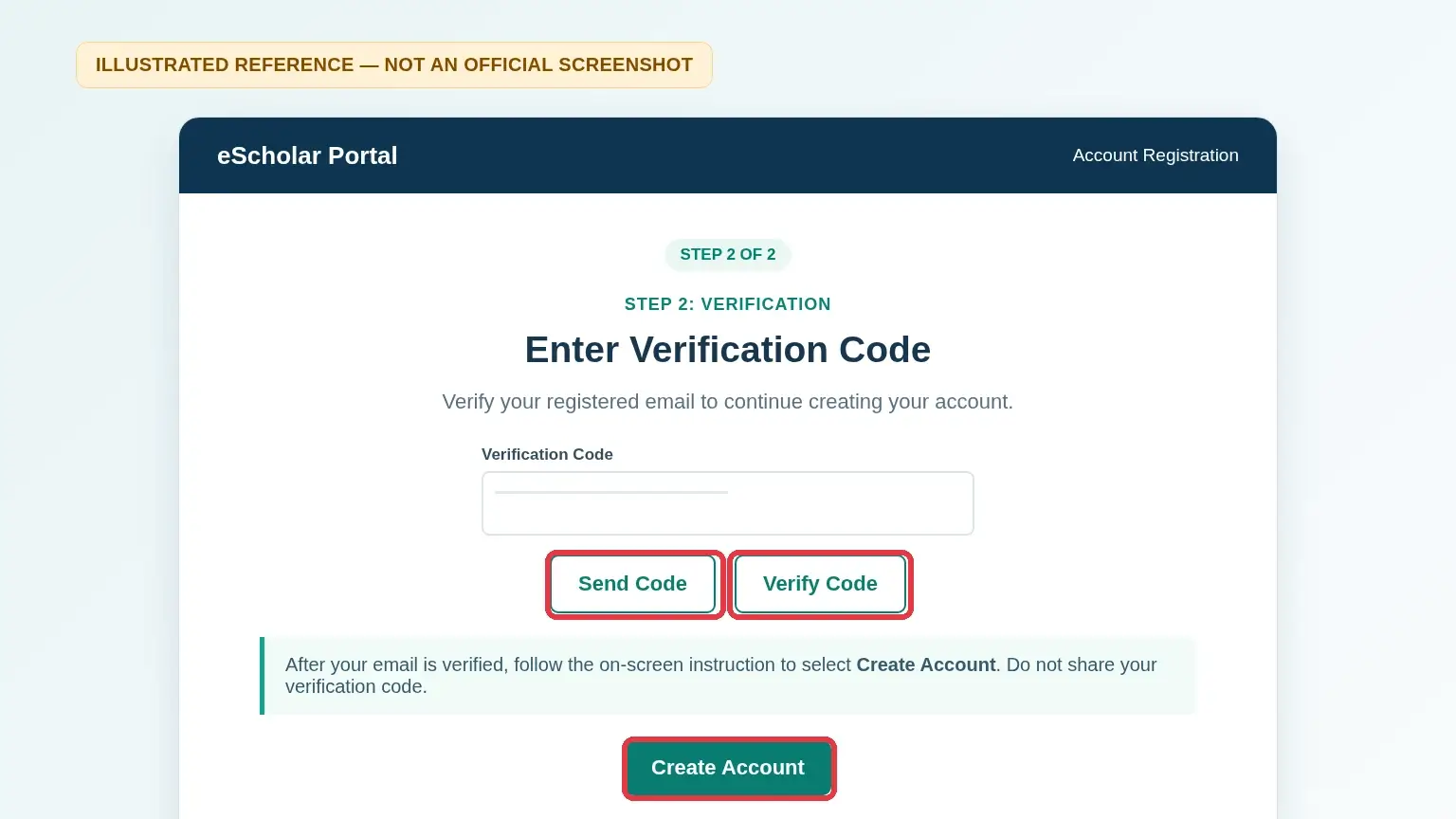
The next stage of registration is labelled Verification. Select Send Code to request an email verification code.
Open the inbox of the email address entered during registration. Find the verification message and enter its code into the corresponding field.
Select Verify Code. Wait for the system to confirm successful verification before continuing.
If the message does not arrive, check your spam or junk folder. Never share your verification code with anyone.
Complete Account Creation
After verifying your email, select Create Account on the official eScholar registration screen.
Follow any remaining instructions displayed by the website. Check whether the portal confirms account creation or provides further activation instructions.
Do not assume registration is fully complete simply because your verification code was accepted.
Check for Account Activation Instructions
If eScholar sends you an email containing an account activation or password setup link, open the message and follow its instructions.
Some published EBSU registration instructions describe setting a password through an email link and selecting Save Profile. Follow this step if it appears in the current registration process.
When registration is complete, return to the official eScholar portal and sign in using the credentials you created.
Having Trouble Registering?
Verification Email Missing
Check your inbox, spam, and junk folders. Confirm that the email address entered on the form is correct.
Email Addresses Do Not Match
Make sure the email address and confirmation email field contain exactly the same address before selecting Next Step.
Account Already Registered
If you already created an account, use the official Log In option instead of submitting another registration.
After registration: Creating an eScholar account is not the same as submitting a scholarship application. You must log in, complete the appropriate application form, submit the required documents, and follow the official assessment process. Use only the government portal to enter passwords, verification codes, or sensitive personal information.
How to Log In to the Davao City eScholar Portal
Already registered for a Davao City eScholar account? Learn how to sign in using your registered email address and password, complete email OTP verification when required, and access your scholarship account.
Important: This walkthrough is for the eScholar scholarship system only. New applicant? Follow the registration walkthrough above before signing in.
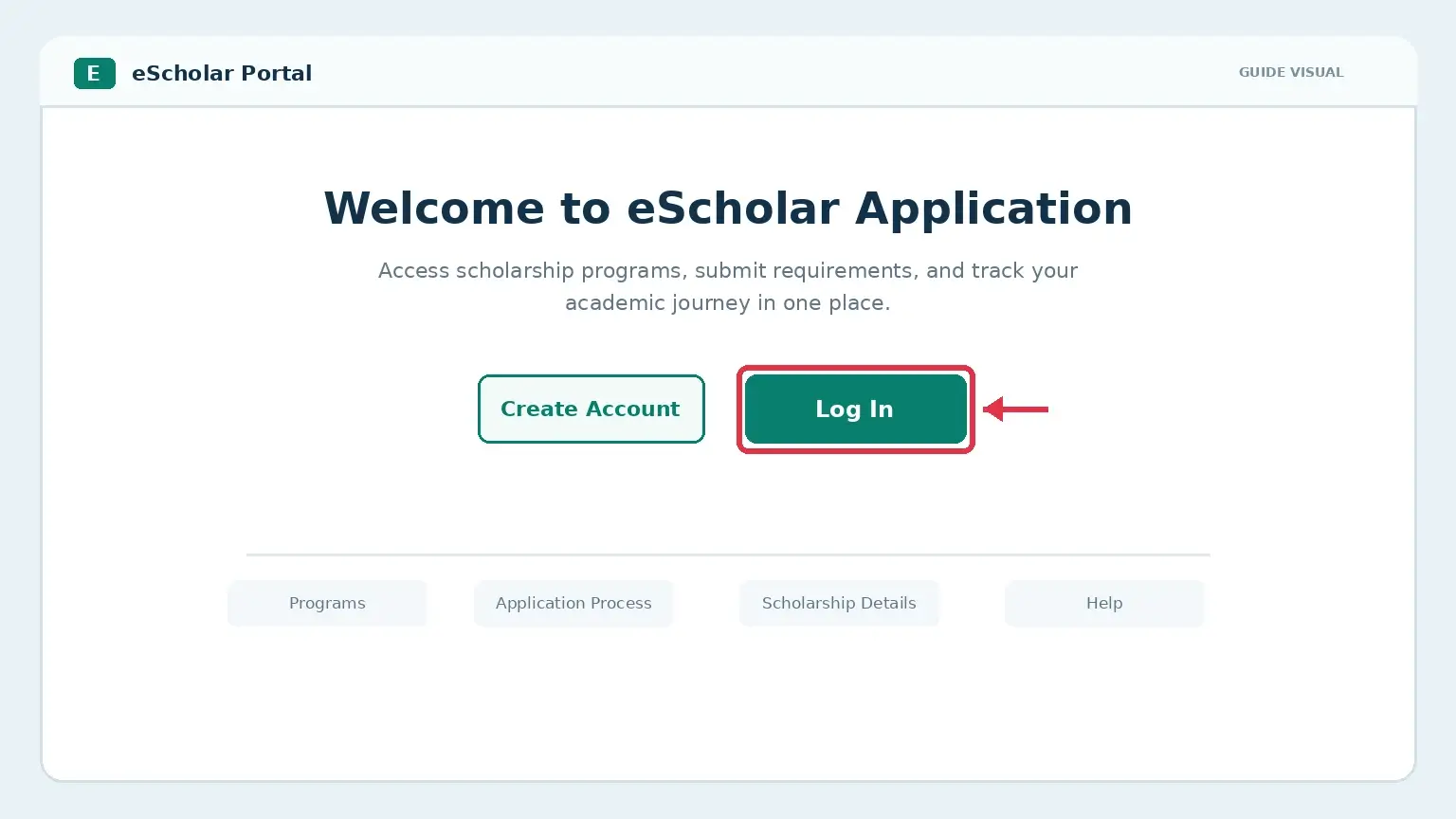
Open the Portal and Select Log In
Visit the official Davao City eScholar website using the link below.
On the welcome page, locate the Log In button and select it to open the sign-in form.
If you have not registered yet, select Create Account and complete the account registration process first.
Open Official eScholar Portal ↗Enter Your Email and Password
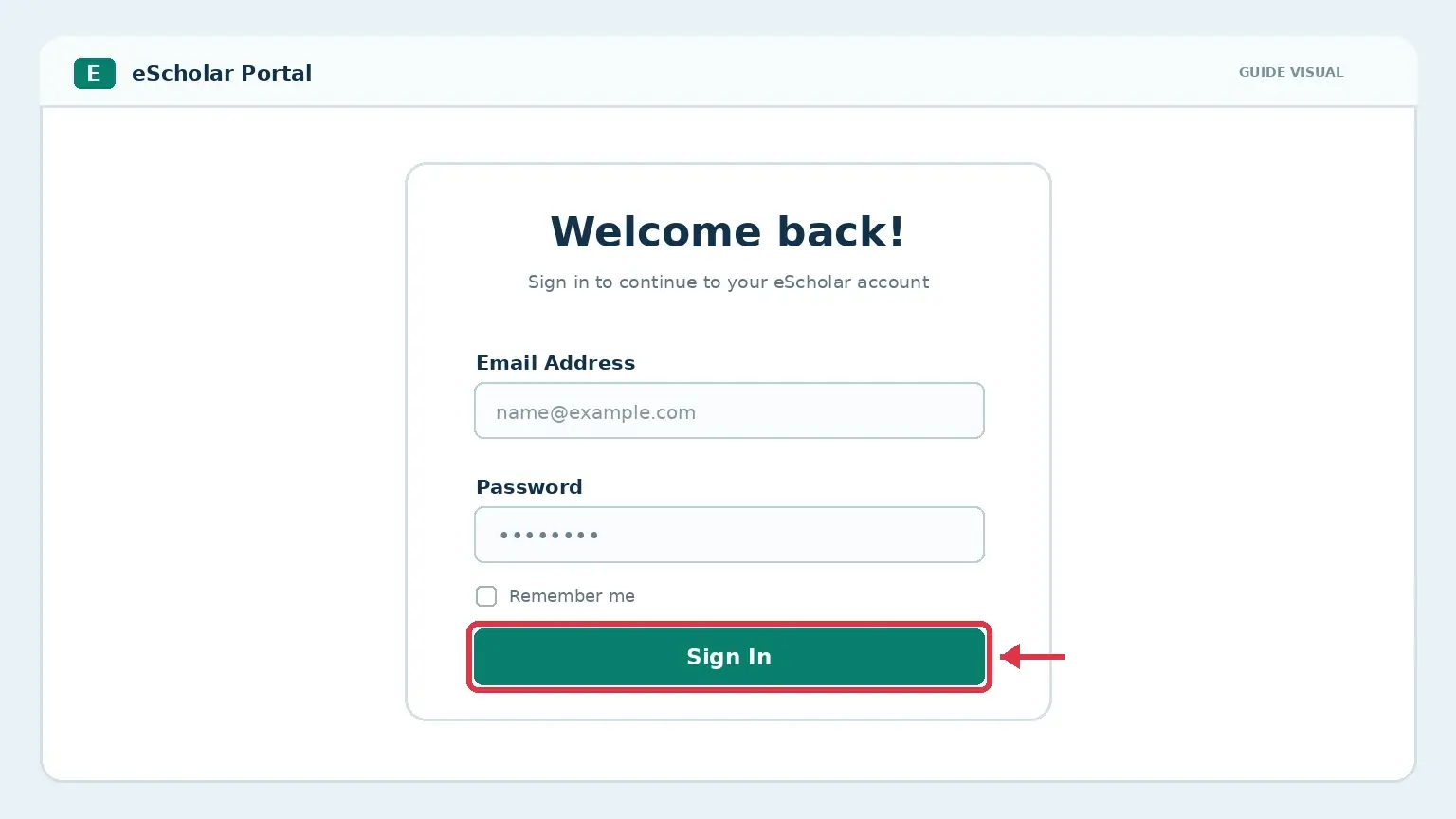
The sign-in form is headed Welcome back!. Enter the email address associated with your eScholar account in the Email Address field.
Next, enter your account password in the Password field. Make sure you use the password created during account activation.
Check both entries for typing errors, then select Sign In to continue.
Enter and Verify the Email OTP
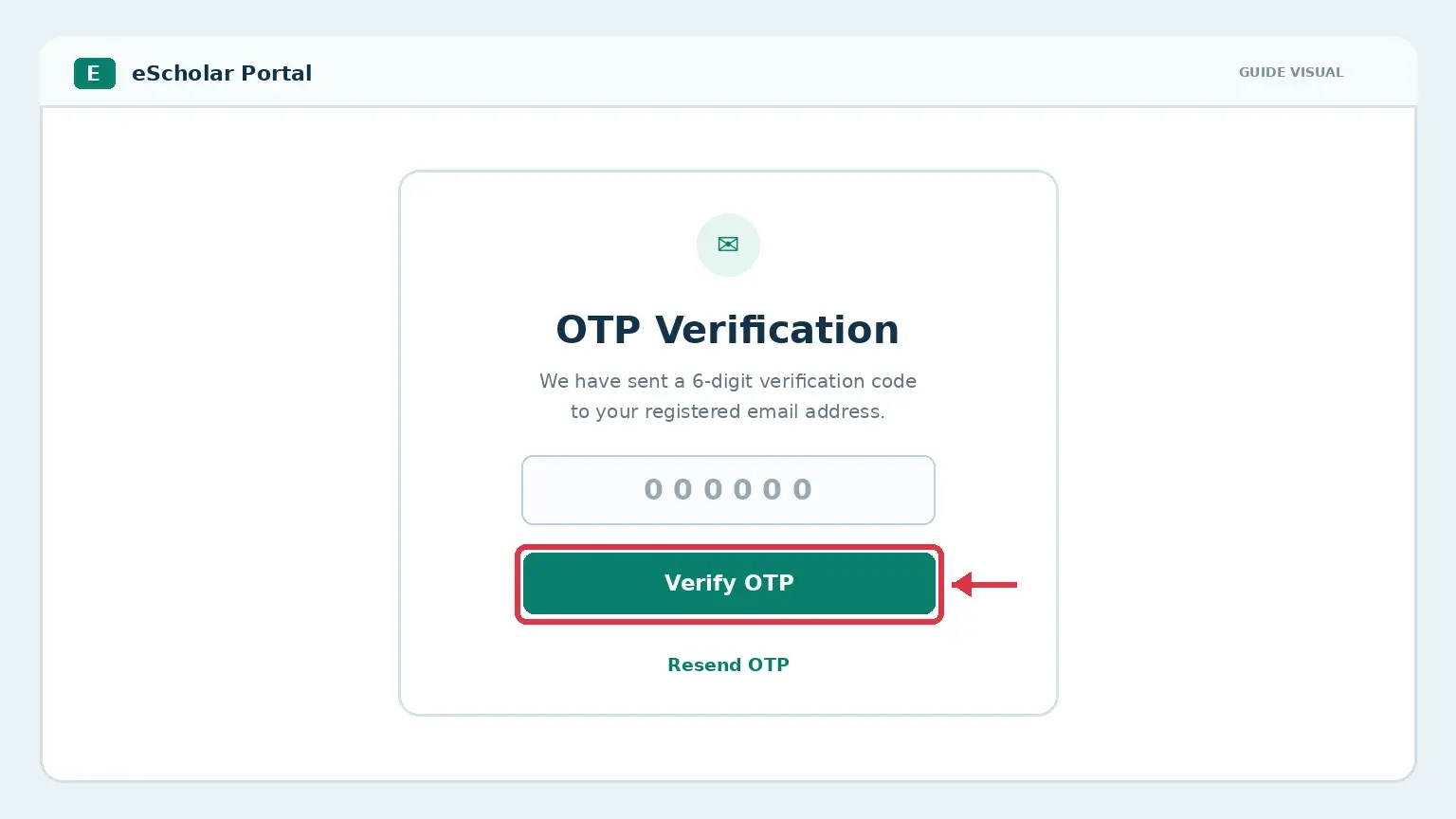
After entering your login credentials, the portal may display an OTP Verification screen for additional account security.
Check your registered email address for the 6-digit verification code. Open the latest verification message sent by the official system.
Enter the six digits in the OTP field, then select Verify OTP. Continue only after the portal accepts your code.
If the message does not arrive, check your spam or junk folder. Use Resend OTP if the option is available.
Having Trouble Logging In?
If you cannot access your eScholar account, check these common sign-in issues before trying again.
Incorrect Email or Password
Check your registered email address and password for spelling mistakes, extra spaces, and incorrect capitalization. Enter your credentials again carefully.
OTP Email Not Received
Check your inbox, spam, and junk folders. Confirm that you can access your registered email address and select Resend OTP when available.
OTP Not Accepted
Make sure the verification code was entered correctly. If you requested more than one code, follow the latest email instructions and use a new code if necessary.
Forgot Your Password?
Check the official portal for an available password recovery option. If one is not shown, seek help through official EBSU support channels. Do not enter your password on unofficial recovery websites.
Continue to Your Scholarship Application
Once your login and any required verification succeed, follow the instructions displayed in your eScholar account.
The government’s published application process involves completing the scholarship application form, submitting the required supporting documents, and waiting for evaluation and assessment.
Important: Signing in to your eScholar account does not mean your scholarship application has been submitted or approved. Follow the applicable scholarship program’s instructions and announced application schedule.
How to Apply for a Davao City Scholarship Online
Already registered and signed in to eScholar? Learn how to check the scholarship program, complete the application, prepare supporting documents, and follow the Educational Benefit System Unit (EBSU) evaluation process.
Application dates, eligibility, eligible courses and required documents depend on the scholarship program and the latest official announcement.
Check the Scholarship Program First
The official EBSU portal describes several educational assistance programs. These have different qualifications and may not all be accepting new applications at the same time.
- STEP
- STEP – Financial Assistance (STEP-FA)
- Special Educational Assistance (SEAP)
- Lumad Student Assistance
- Medical and Law Assistance
- Technical and Vocational Training
Documents to Prepare Before Applying
EBSU’s official service guidance distinguishes initial records from additional documents that may be requested during evaluation. The current eScholar form and your chosen program’s latest instructions take priority.
Academic records and initial preparation
- Recent report card or transcript of records, as applicable
- Senior high school grades for an incoming college freshman
- Recent college grades, where requested
- ALS accreditation/equivalency record, if applicable
Additional or program-specific documents
- Barangay certificate of residency
- Certificate of good moral character
- CSWDO certificate of indigency or eligibility
- Parents’ income-tax records or tax-exemption certificate, as applicable
- 2 × 2 ID photograph or other supporting records if requested
Important: These are examples, not a universal checklist. Some programs require special proof—for example, published instructions for Lumad assistance also describe an NCIP certificate. For STEP, the 2026 Citizen’s Charter separates initial academic requirements from several documents requested after evaluation; a live application may request documents at different stages.
Step-by-Step Scholarship Application Guide
Follow the stages in order. Read every live portal instruction before selecting or submitting anything.
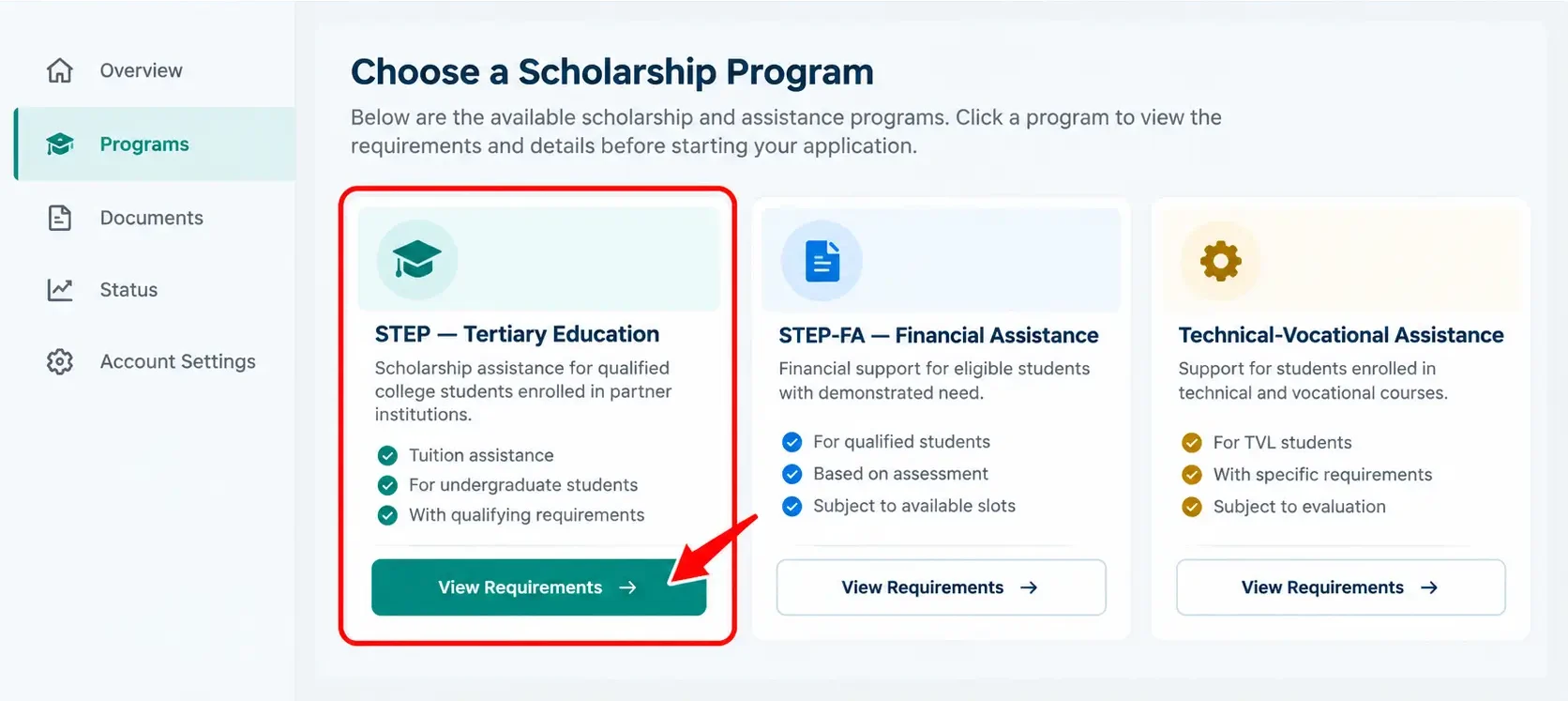
Check the Available Scholarship Program
Sign in to your eScholar account and check whether a scholarship program is accepting applications. Review the latest EBSU announcement for its dates, residency rules, grade qualifications and eligible courses.
Compare the requirements with your circumstances before choosing a program. If program options appear in your account, select only an option for which you meet the stated conditions.
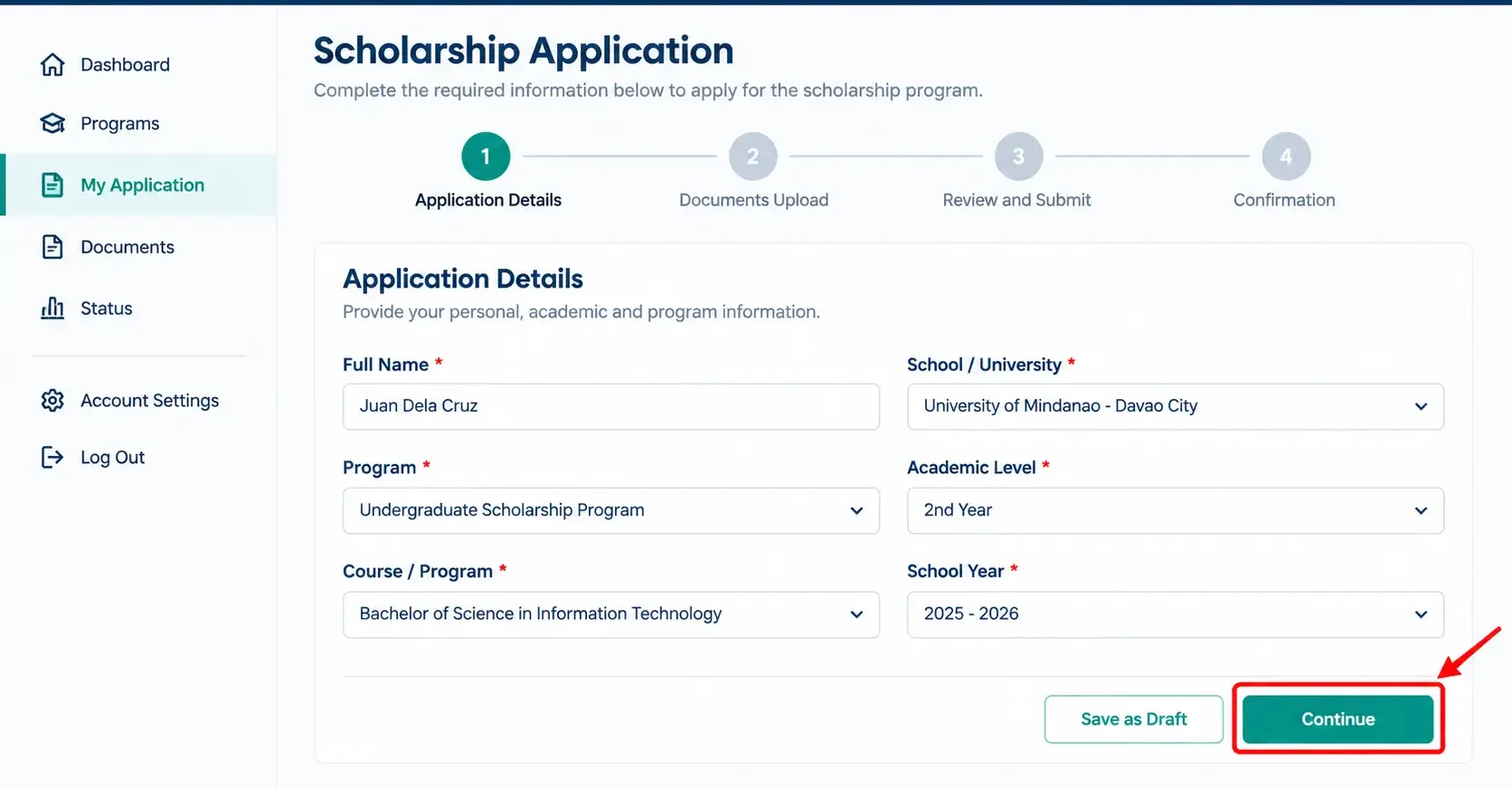
Complete Your Application Details
Open the application form provided for your selected program. Enter the personal, contact and academic information requested by the live system.
Check your full name, residence, school, course and grades against your official records. Complete all required fields and follow the displayed instructions to continue.
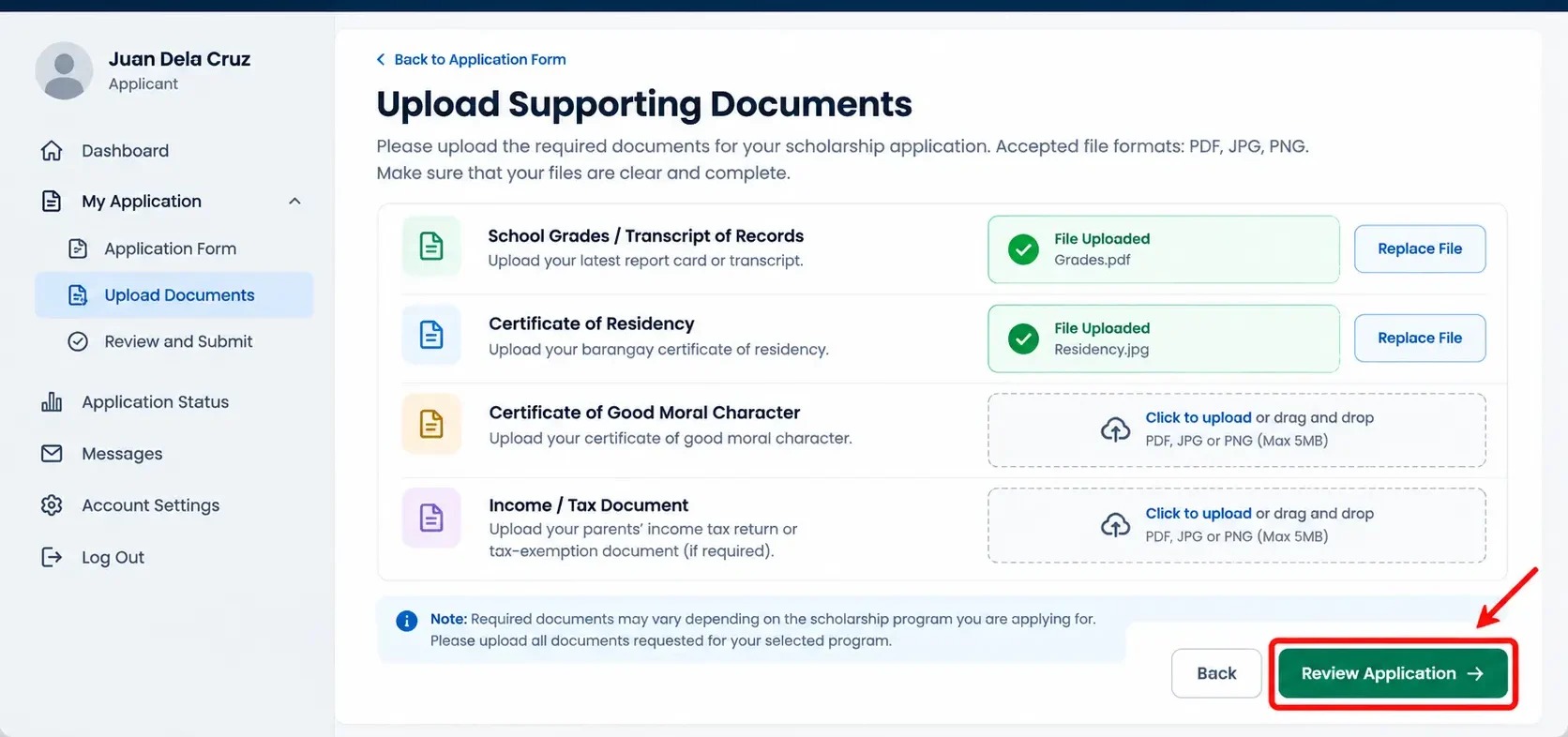
Upload Your Supporting Documents
Attach the records requested for your scholarship category. If the portal asks for grades, residency, eligibility or income documents, provide the correct and complete file for each field.
Check that every image or scan is readable and belongs to the applicant. Use only the file formats and size limits displayed on the official portal.
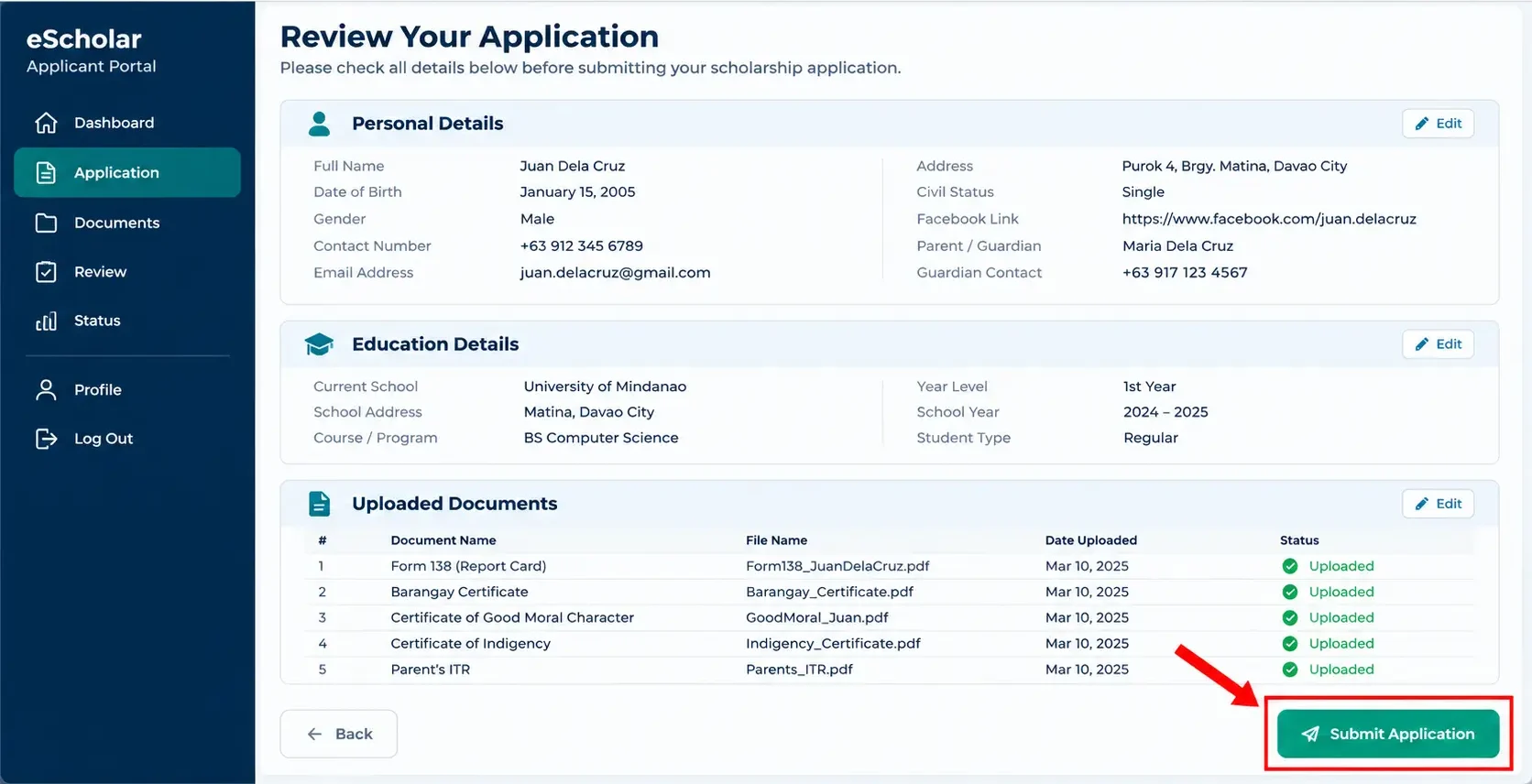
Review and Submit the Application
Before final submission, review your personal details, academic information and uploaded records. Use any available editing options to correct errors.
Follow the official portal’s submission controls. Afterwards, look for a confirmation, application status or reference number, if provided, and save the details for later follow-up.
Wait for EBSU Evaluation and Results
EBSU evaluates applications against the relevant scholarship rules. Keep your registered email and phone number accessible, and check your portal account and official announcements for updates.
If additional records, an interview or a further evaluation stage are required for your program, follow the specific instructions issued by EBSU.
Follow the Next Official Instructions
The 2026 Citizen’s Charter lists interviews, announcement of qualified applicants and orientation within certain EBSU program procedures. Attend these stages only when instructed for your scholarship.
Successful form submission does not guarantee approval. Keep copies of official notices and complete any required follow-up steps.
Need Help With Your Application?
Missing documents or rejected uploads? Read the error message, review the file requirements and follow any official correction instructions before resubmitting.
Unsure about eligibility or application results? Contact the Educational Benefit System Unit (EBSU) through the official government channels.
EBSU office: Room 28, Rooftop, Davao City Hall, San Pedro Street, Davao City. Telephone: (082) 241-1000 local 247. Email: [email protected]. View official office details ↗
Continue on the Official eScholar Website
Scholarship forms, documents and decisions are handled by the government system. DavaoCityPortal.org is an independent guide and does not collect application details, passwords or OTP codes.
How to Register for Davao City Reports
Want to report a problem in your neighborhood or raise a concern with the City Government of Davao? Start by registering on its official reporting website. This guide explains the account form, phone verification, and email confirmation.
Davao City Reports is a separate service from eScholar. You do not need an eScholar account to follow this guide.
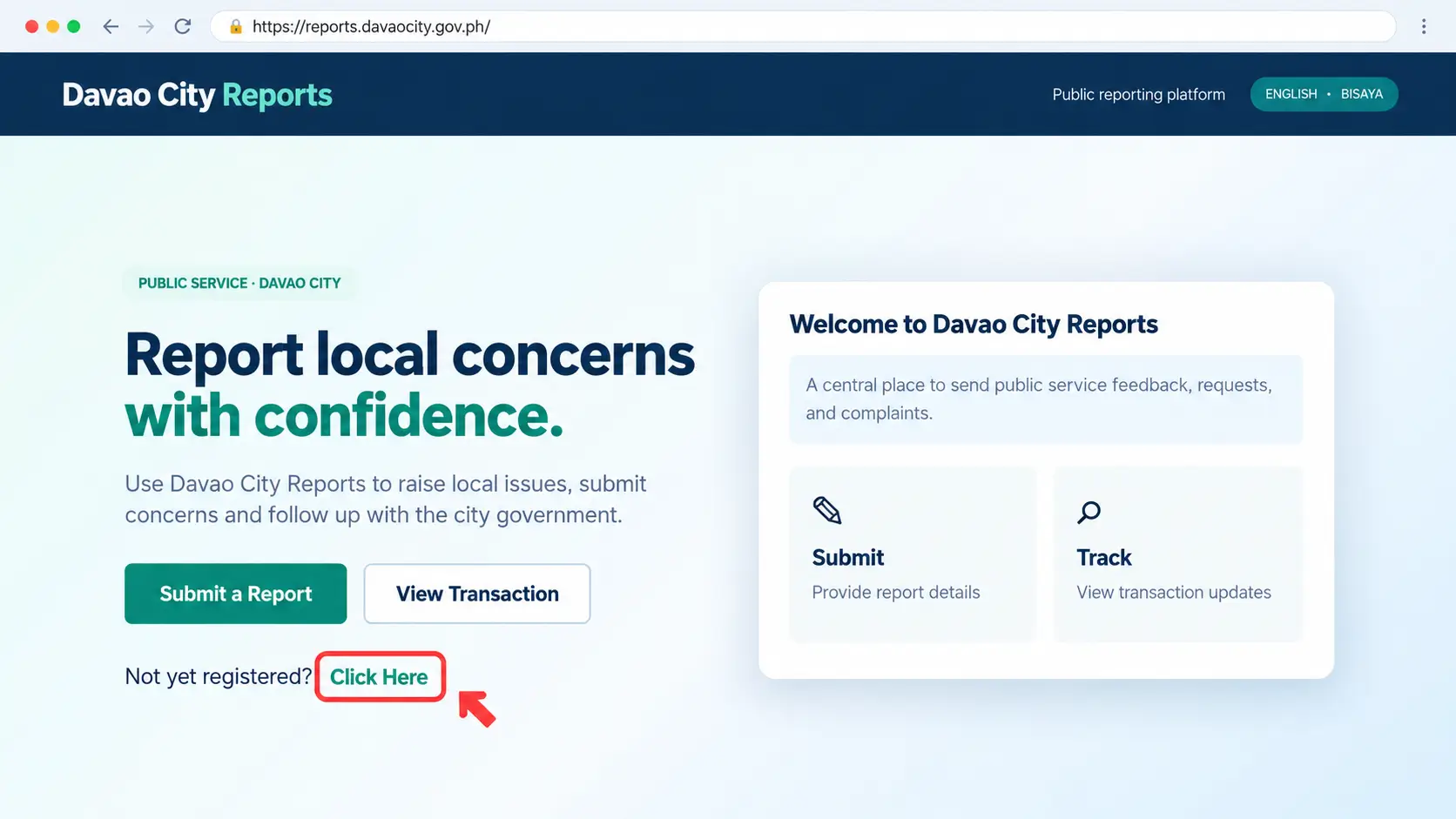
Open Davao City Reports and Select “Click Here”
Visit the official reporting site. The home screen offers Submit a Report and View Transaction. If you are new, look for Not yet registered? Click Here to begin creating your account.
Check that you are on the correct government domain before entering contact details.
Open Official Davao City Reports ↗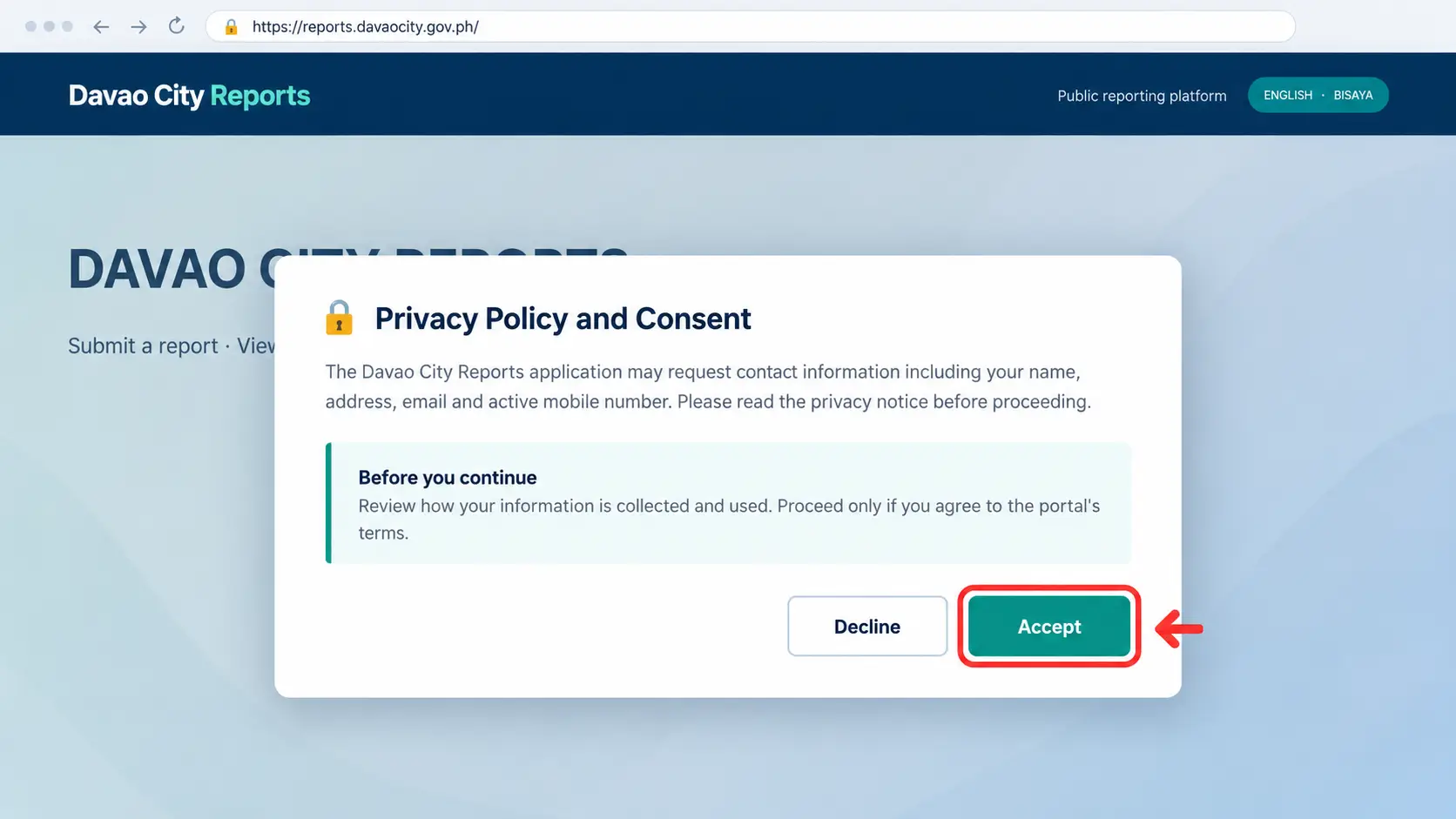
Read the Privacy Notice
The website may show a privacy and consent message. It explains how information such as your name, email, mobile number, and address may be collected and used.
Read the notice. Choose Accept only if you agree to the stated terms, then continue to the registration form.
Enter Your Registration Details
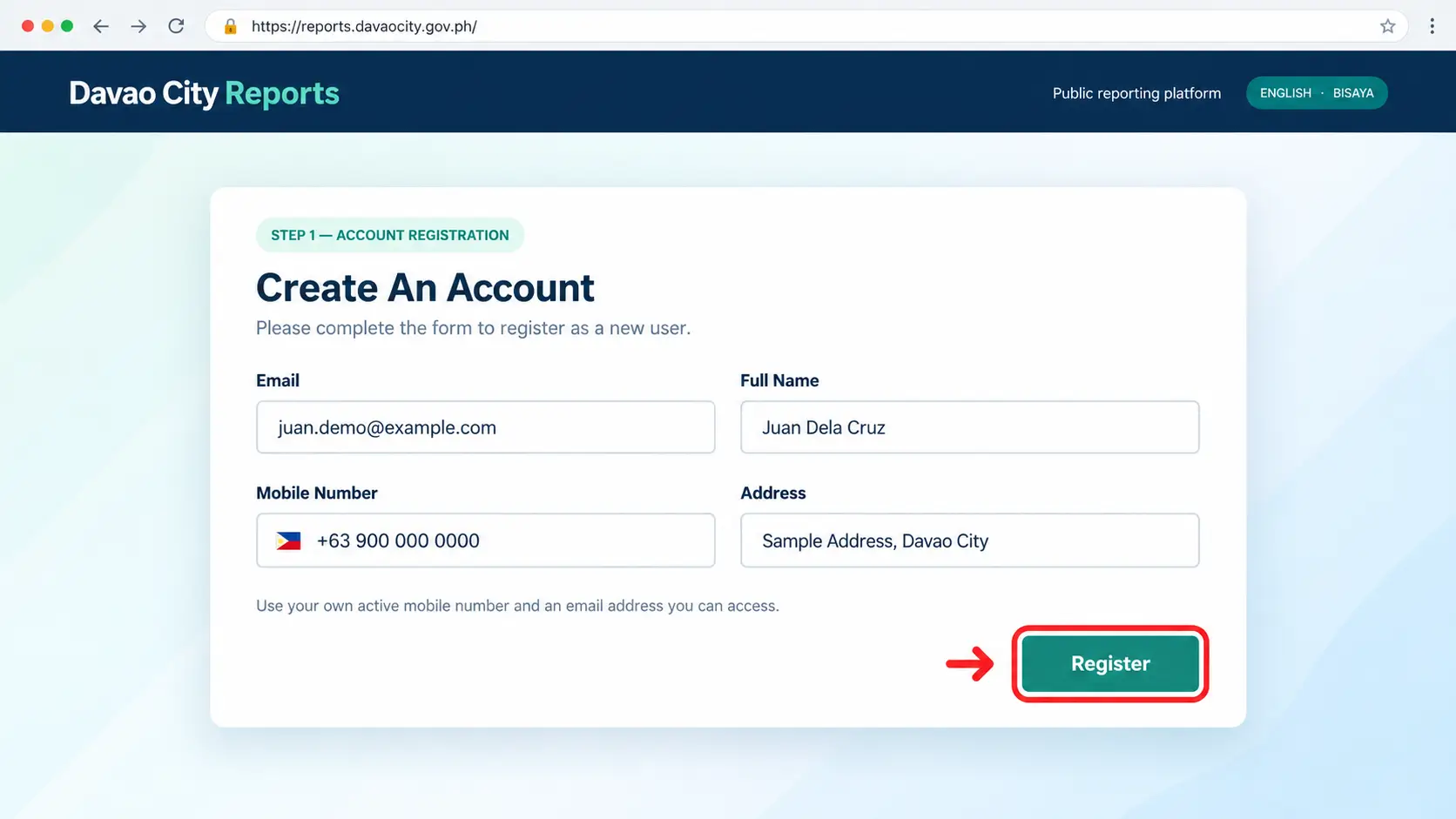
Complete the Create An Account form with your email, full name, active mobile number, and address.
For a Philippine number, check the +63 country code and enter the remaining digits in the format requested by the form. Check for mistakes before selecting Register.
If the form displays “Invalid phone number,” check the digits and the requested format.
Enter and Verify the Mobile OTP
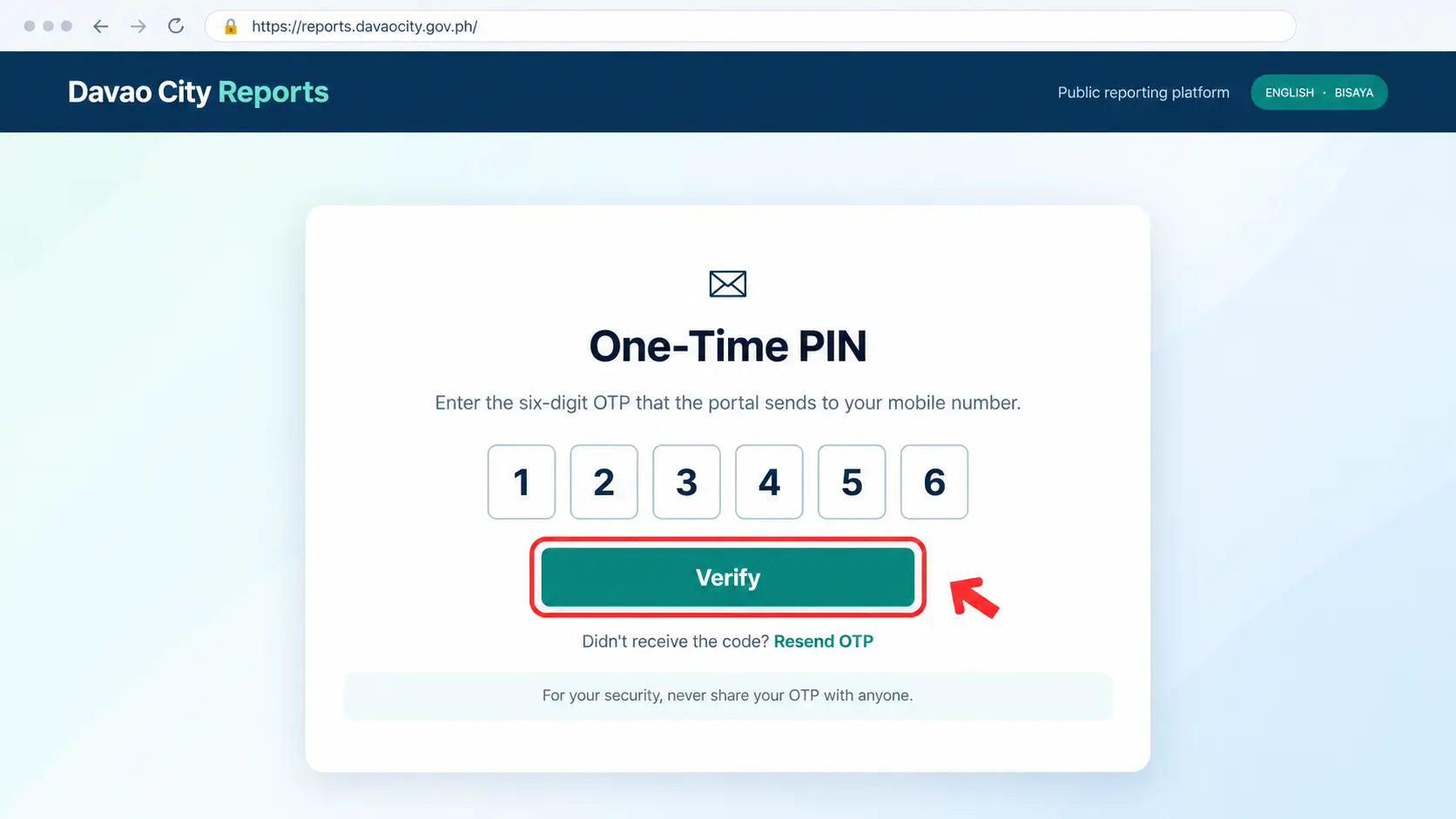
The portal provides a One-Time PIN verification step. Check the SMS sent to your registered mobile number, enter the six digits, and select Verify.
Use Resend OTP when available if the code has not arrived. Enter only the code from the real message.
Never share your real OTP with anyone.
Check Your Email for the Confirmation Link
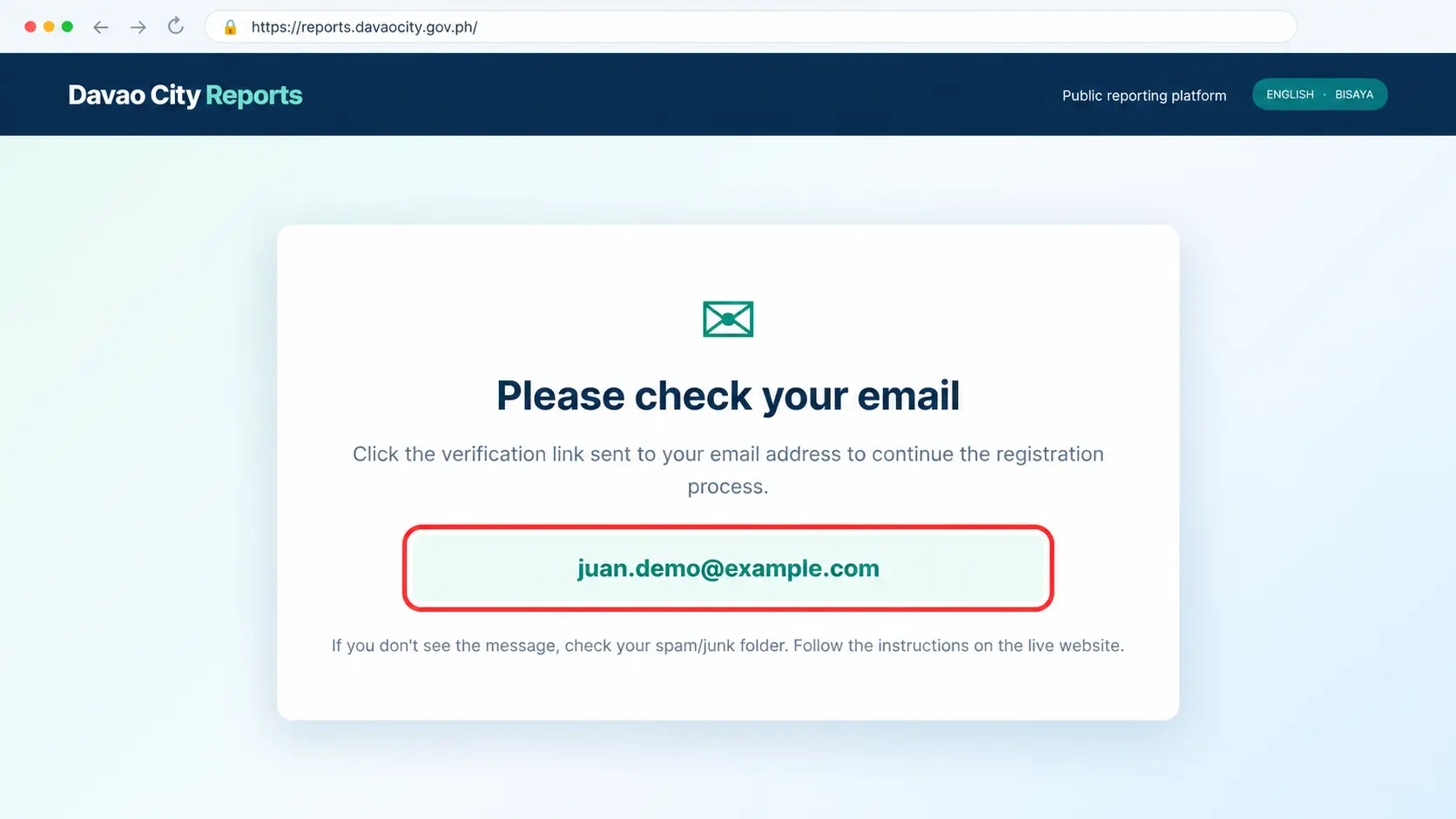
The official website also displays an instruction to check your email and click the link. If this prompt appears, open the message sent to your registered inbox and follow its verification instructions.
Only consider registration complete when the live portal confirms it. Once ready, return to Davao City Reports to start the reporting process.
If Registration Does Not Work
Check the +63 country code, digits, and mobile-number format.
Confirm mobile signal and use Resend OTP when available.
Check your spam folder and ensure your email address is accessible.
Registration Complete? Submit a Report Next
Registration and filing a complaint are different tasks. The next homepage guide will cover completing a report, adding a location, and checking its status.
How to Submit a Report in Davao City
Registered with Davao City Reports? You can now explain your concern, identify the correct location, attach useful evidence, and submit the report through the official service.
Follow each step using the clear visual examples below. Sample details are fictional; the official website interface may change.
Uncollected waste near a street in Barangay Matina, Davao City. All example details and tracking numbers are fictional and used only for demonstration.
Open the Official Reports Website
Visit the official Davao City Reports website . This service is separate from eScholar. If you are new, follow the registration guide above first.

Select “Submit a Report”
On the landing page, choose Submit a Report rather than View Transaction.
Submit a Report starts a new complaint. View Transaction is for checking a report you already filed.
Read the Important Reminders
Read the information shown before entering your concern.
The portal requests accurate incident details, an identifiable location or person, landmarks, and the date and time of the incident.
Select Got It to continue when this notice appears.


Enter a Clear Report Subject
Write a short title explaining the problem. For example: Uncollected waste near our street.
Avoid vague titles such as “Problem” or “Please help.” A specific subject makes the issue easier to understand.
Describe Your Concern in Detail
Explain what happened, when it happened, how long the issue has continued, and who or what is affected.
Include the correct address and a nearby landmark. Give the incident date and time as accurately as possible.
Useful information: exact place, incident date, time, landmark and relevant evidence.


Open the Location Map
Find the Location field and select Map.
The map helps identify where the concern happened. This may be different from your home address.
Pin and Save the Correct Location
Move or zoom the map until you find the area of the incident.
Select the relevant location, check the address, and choose Save Location.
Check that the saved location is correct before returning to the report form.


Select Supporting Photos If Available
Attach useful photographs that help explain your concern.
For example, a photo showing an uncollected waste collection point may help the concerned office understand the situation.
The official form lists a 25 MB maximum image size. Follow the limits shown by the live portal.
Click the “Upload Images” Button
After selecting any supporting files, use the portal’s upload control.
Important: The official instructions say to click the Upload Photos button even when you have no photos to attach.
Selecting files and uploading them are different actions. Do not skip the upload step.

Review the Report Before Submission
Check your subject, description, date and time, saved location, and uploaded attachments. Correct any mistakes before submitting the report.
Click “Submit Report”
Once all required information is complete, select Submit Report.
Wait for the government website to respond. Avoid repeatedly submitting the same information while the form is processing.


Save Your Tracking Number
If the official website gives you a tracking number, copy or save it.
You can use the government’s View Transaction feature to follow your report.
This example uses a fictional tracking number. A submitted report is not automatically a resolved complaint.
Problems You May Encounter
“Outside the Radius” Message
The system may restrict access based on your location. Do not bypass this restriction. Use an authorized reporting channel.
Report Not Recorded
Check whether you followed the instruction to click Upload Photos or Upload Images, even without attached pictures.
Location Cannot Be Selected
Check location permission, zoom to the correct area, and provide an identifiable address and landmark.
Incomplete Report Details
Add the exact location, relevant date and time, incident details, and any useful supporting evidence.
Ready to Submit Your Concern?
Submit reports directly to the City Government. Keep your tracking number if one is provided. Our next guide explains how to view report status and resolution.
DavaoCityPortal.org is an independent guide. Official reports and personal information are handled by the government system.
How to Track a Report in Davao City
Already submitted a complaint? Use Davao City Reports to review your transaction, read progress updates, and check whether the concerned office has recorded a resolution.
The examples below contain fictional report details. Davao City Reports does not share an account with the eScholar system.
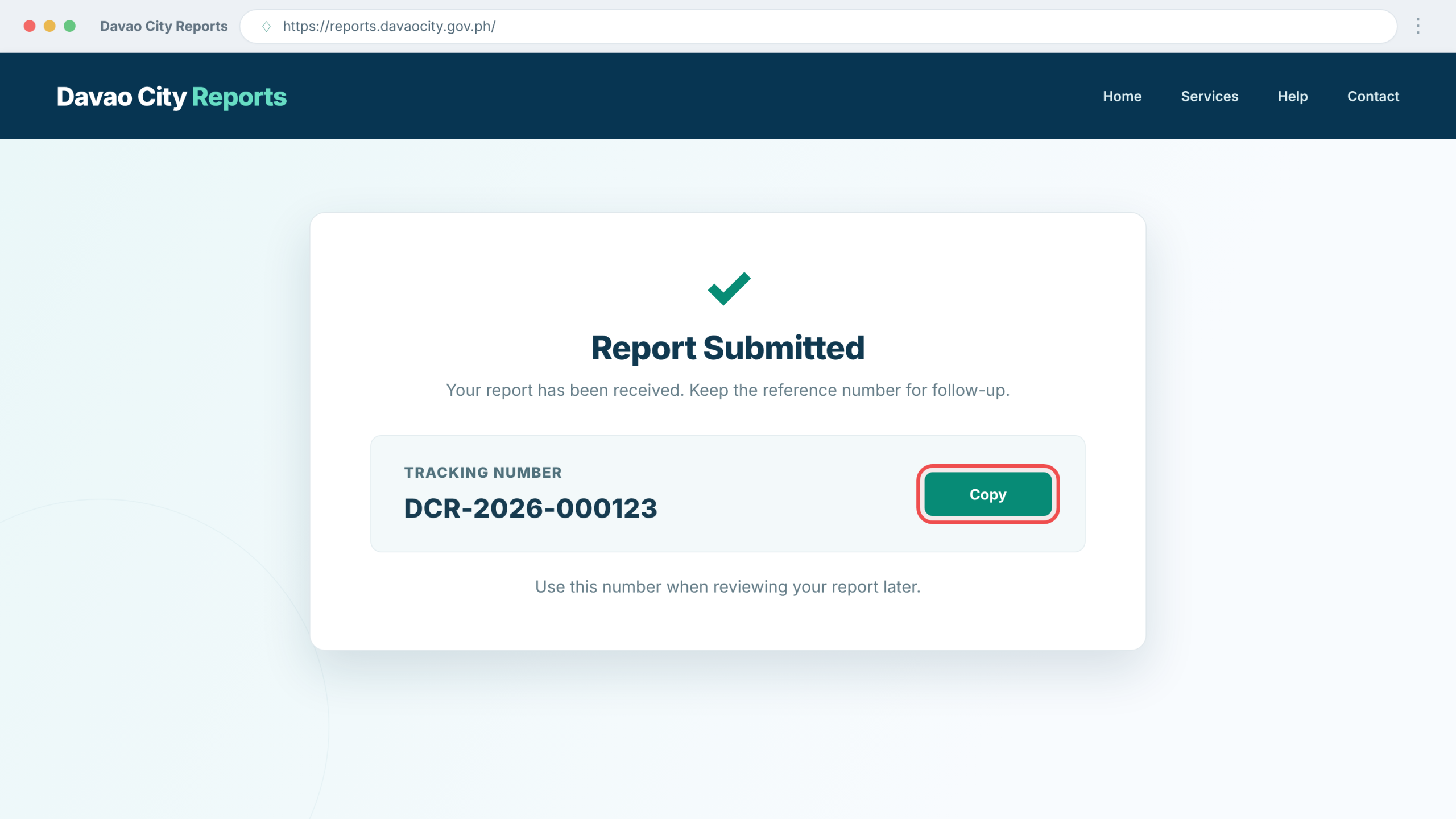
Keep Your Tracking Number
After submitting a report, save the tracking number provided by the official system. Use Copy if that option appears.
Keep the number together with the report subject and date filed. It helps you identify the correct concern later.
The reference number shown in this guide is only a demo example.
Return to the Official Reporting Website
Open reports.davaocity.gov.ph . Follow any verification instructions requested by the live website. Do not share passwords or OTP codes with unofficial websites.
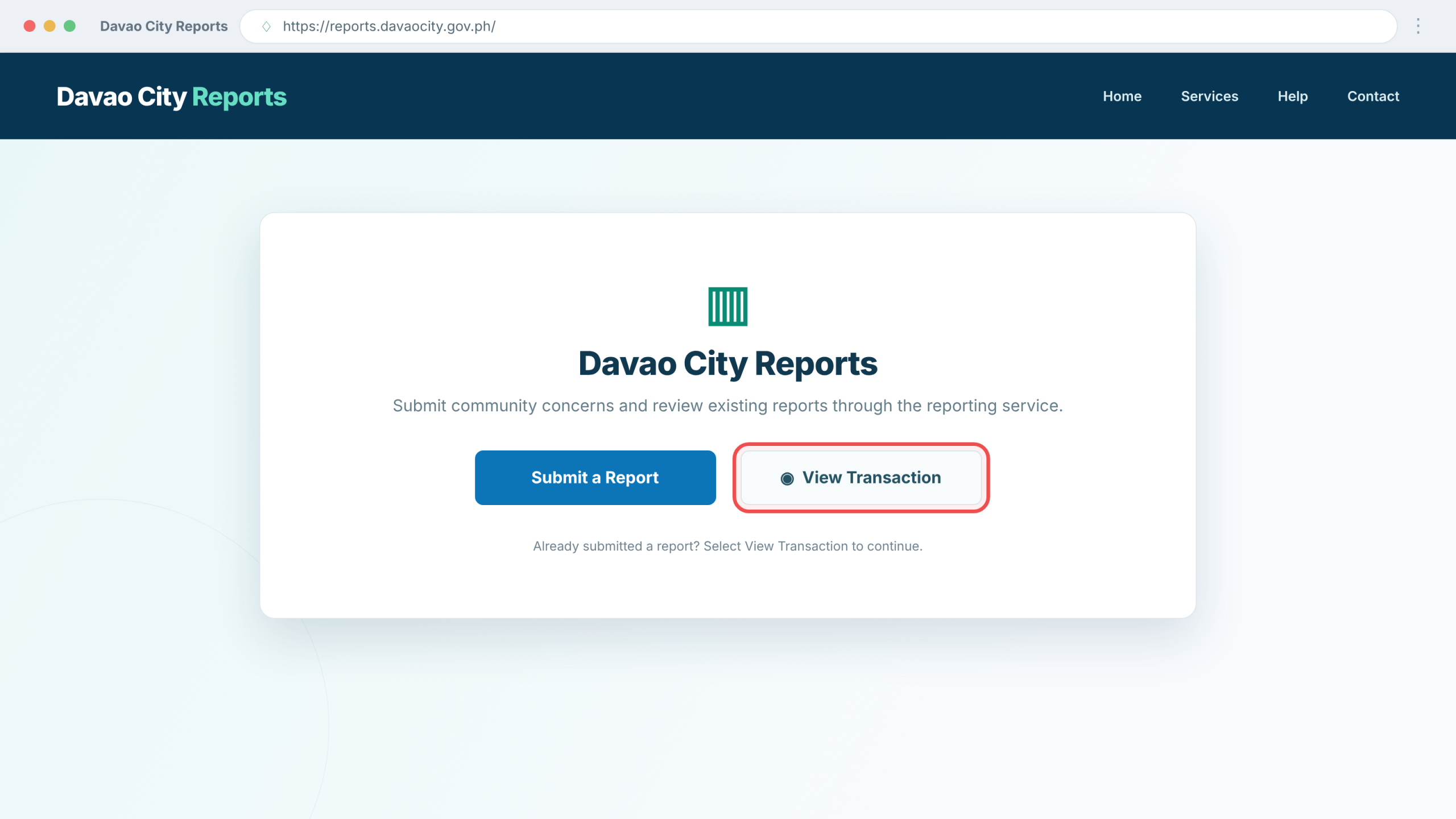
Select “View Transaction”
On the homepage, find View Transaction and select it.
This is different from Submit a Report, which starts a new concern. Follow the live website’s instructions to access your previous transactions.
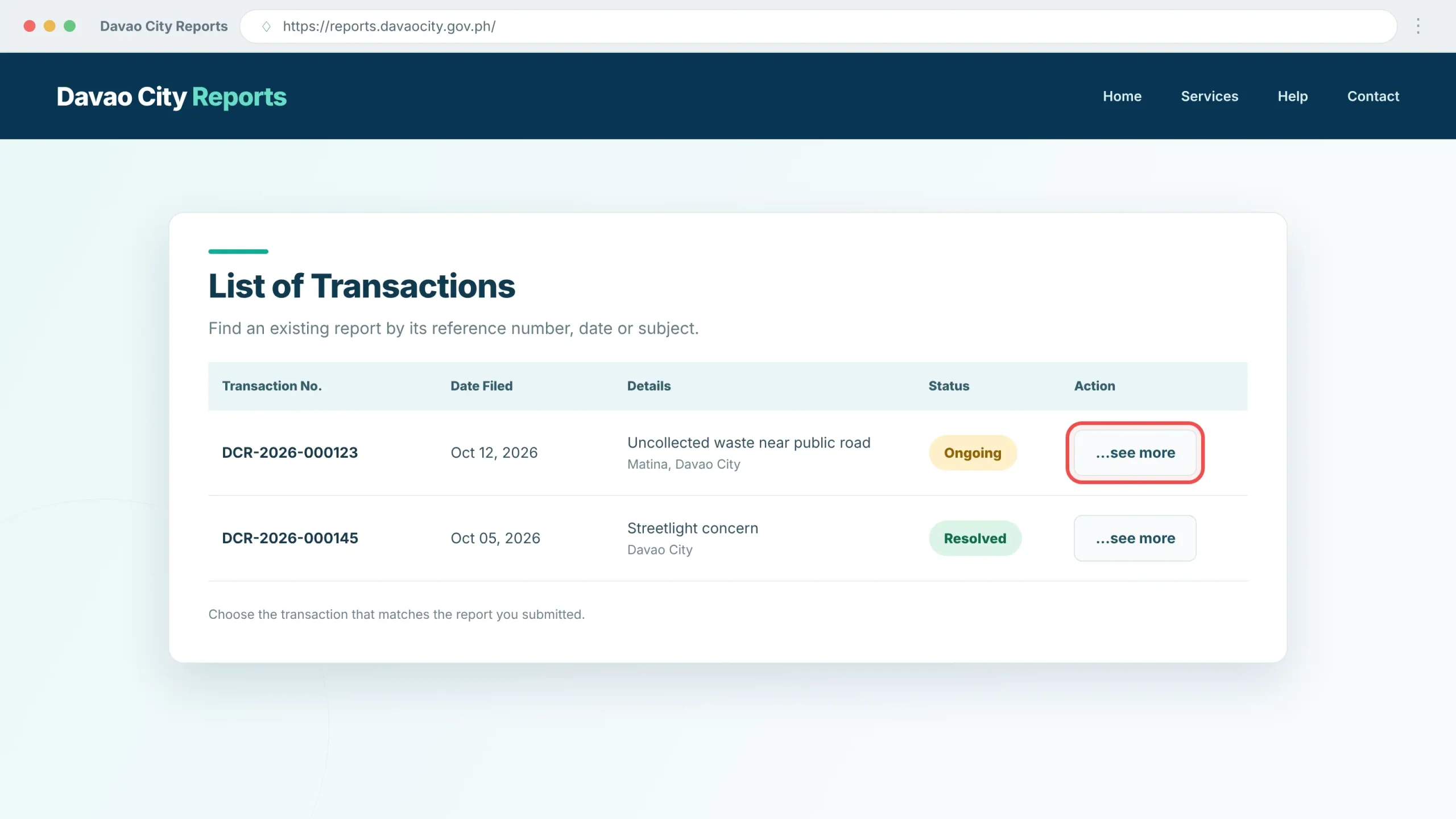
Find the Correct Report
Check the List of Transactions and match the report by its number, subject, or date.
The public interface shows transaction details and a status for each report. If several complaints are listed, choose the correct entry.
Expand the Report Details
Where available, select “…see more” to read the complete concern. Review the issue, date filed, and any attachments shown.
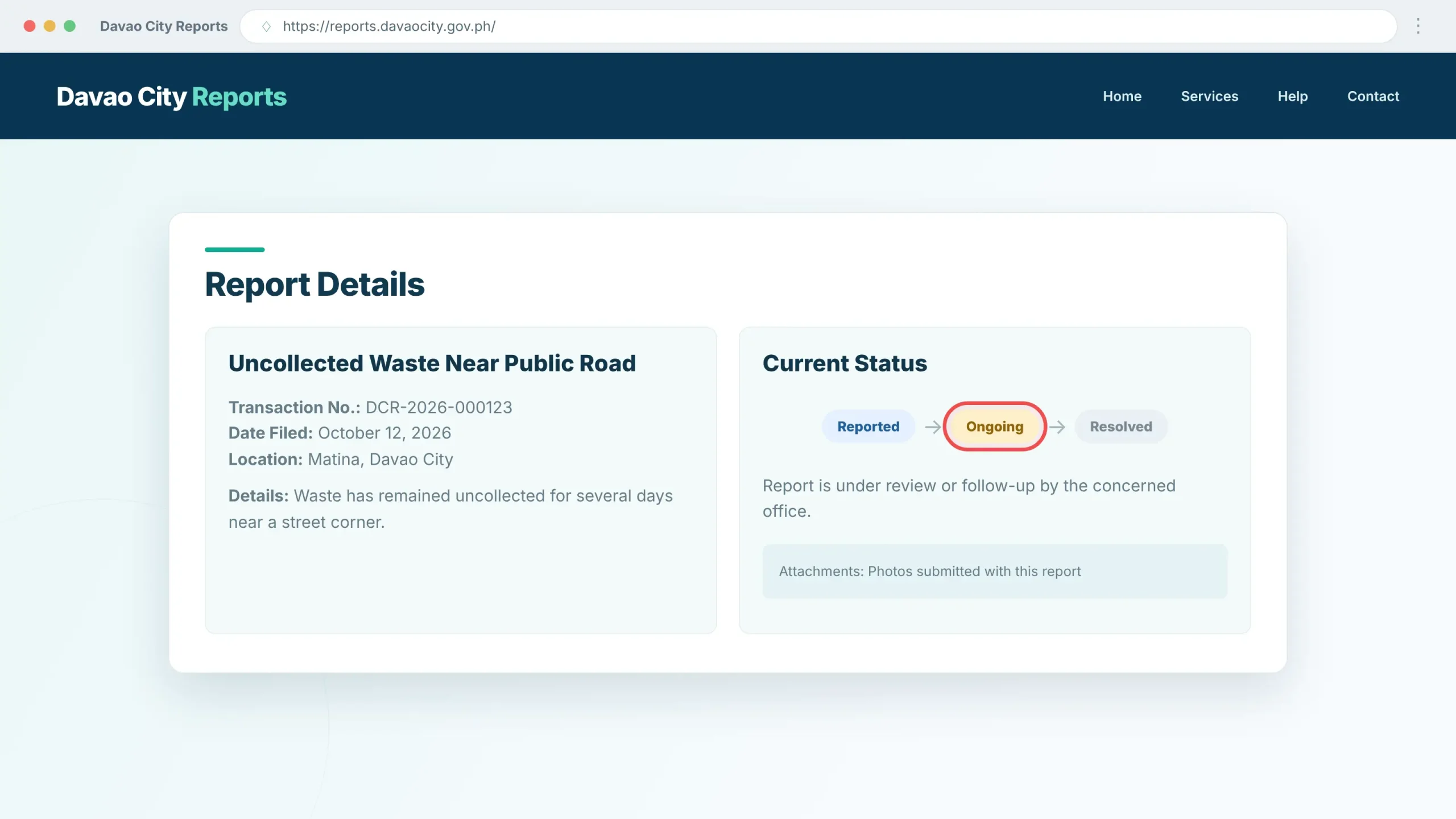
Check the Current Status
Look for your report status. The official website displays Reported, Ongoing, and Resolved.
Check the transaction details before deciding whether a follow-up is needed.
A report marked Reported or Ongoing should not be described as resolved.
What Do the Report Statuses Mean?
These descriptions help you understand each stage. The time needed to resolve a concern depends on its circumstances and the responsible office.
The concern has been recorded in the reporting process. It does not by itself confirm final action.
The concern is still being handled or followed up. A final resolution has not yet been recorded.
The system marks the concern resolved. Review the resolution details to understand the recorded action.
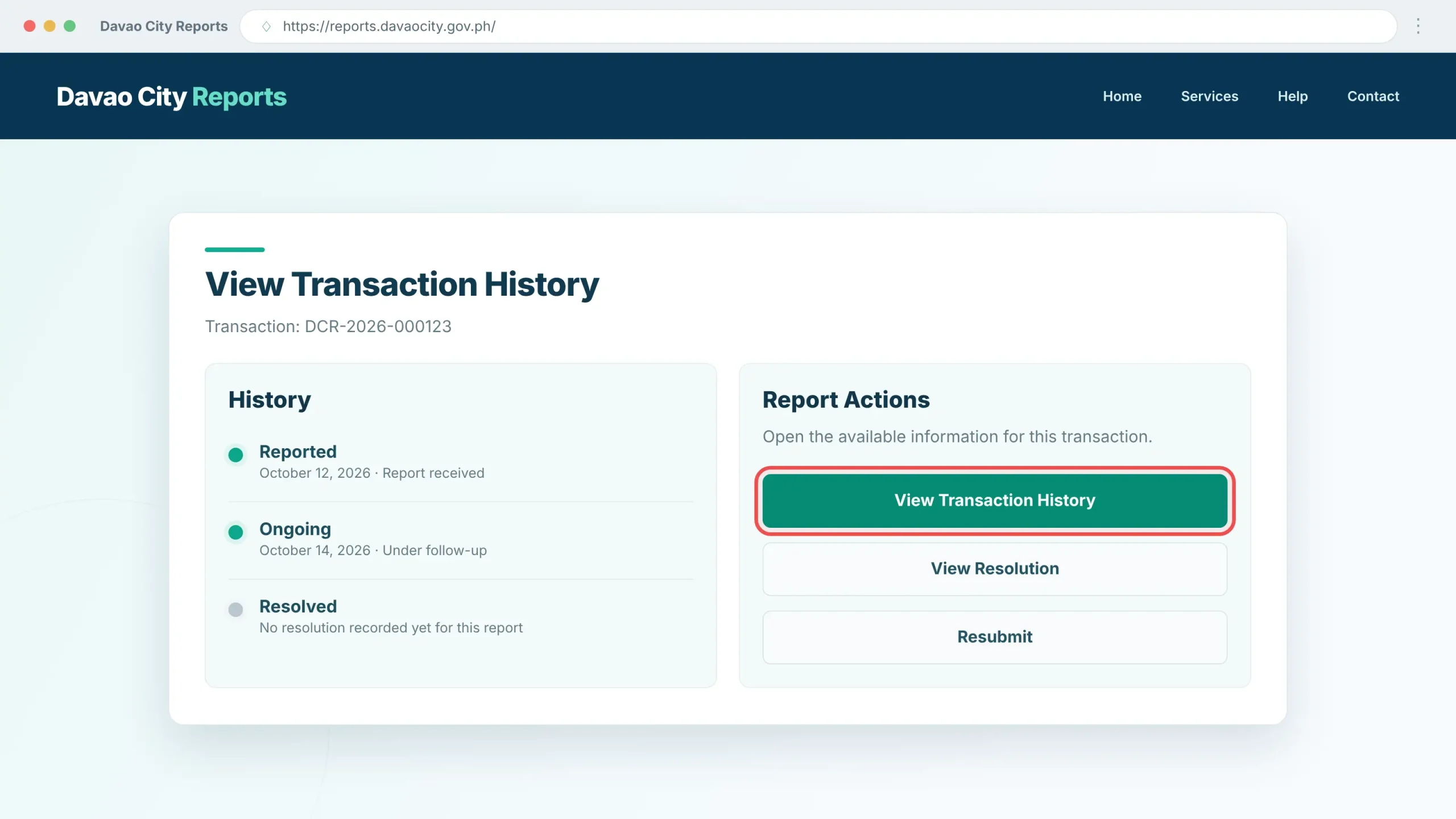
Open “View Transaction History”
If the button is available for your report, select View Transaction History to read the updates recorded for that transaction.
Compare the updates with the current status. Dates and actions in the demo image are fictional.
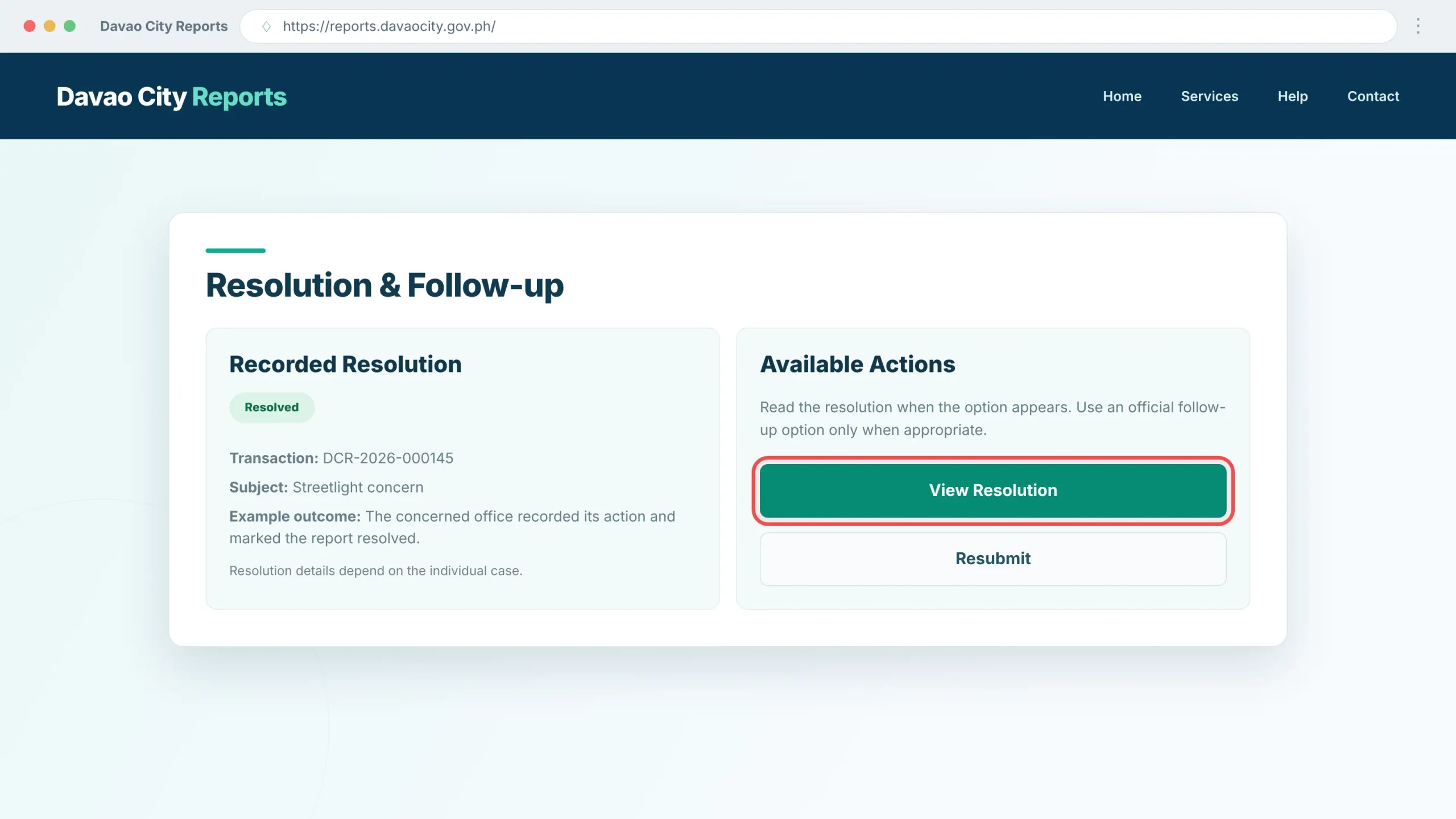
Review the Recorded Resolution
For a report with a recorded outcome, select View Resolution when the option appears.
Read the official response and any action noted by the concerned office. Do not assume every complaint will be resolved within a fixed number of days.
Use “Resubmit” Only When Appropriate
The public interface also includes a Resubmit control. If it is available and relevant to your case, follow the official instructions before using it. Avoid unnecessary duplicate complaints.
Check Your Email for Updates
The City Government has stated that a report update may be sent through email within three to five days. This is not a guaranteed resolution deadline.
Keep checking the reporting website for the latest available information.
Contact Davao City Reports if Needed
If you cannot locate your report or need clarification, contact the official Davao City Reports team. Provide the tracking number and a short description of the concern.
Tracking Problems & Useful Checks
Compare the reference number, subject, and filing date. Make sure you are using the correct government reporting service.
There may not yet be a recorded resolution for the selected transaction. Check the status and history first.
Review the existing updates and allow time for validation or referral. Contact DCR if you need clarification.
Read the resolution and use the available official follow-up option only as instructed by the portal.
Track Your Report on the Official Website
Keep your report reference number and check official updates. You can also contact Davao City Reports at [email protected] or through 0917 131 2333 and 0919 072 2222.
How to Apply for a Davao City Cedula Online
Need a Community Tax Certificate (CTC) in Davao City? The government’s online Cedula service helps individuals start their application before completing the applicable assessment and issuance process.
Follow this guide to prepare your documents, enter your information, obtain a reference number and understand the next steps at the City Treasurer’s Office.
What You Need Before Applying
Prepare accurate personal information and the documents applicable to your employment or taxpayer status. The City Treasurer may require supporting records during assessment and validation.
Prepare your full name, address and other identifying information requested by the form.
Bring an applicable valid ID where required for your applicant category.
Form 2316 or other supporting tax and income information may apply to employed applicants.
Depending on your circumstances, additional tax declaration or Community Tax records may be requested.
Important: Requirements and the amount payable depend on your applicant status. Check current instructions with the City Treasurer’s Office.
Complete Your Cedula Application
Follow these simple steps in order. Images demonstrate selected screens with fictional details; the live government interface may differ.
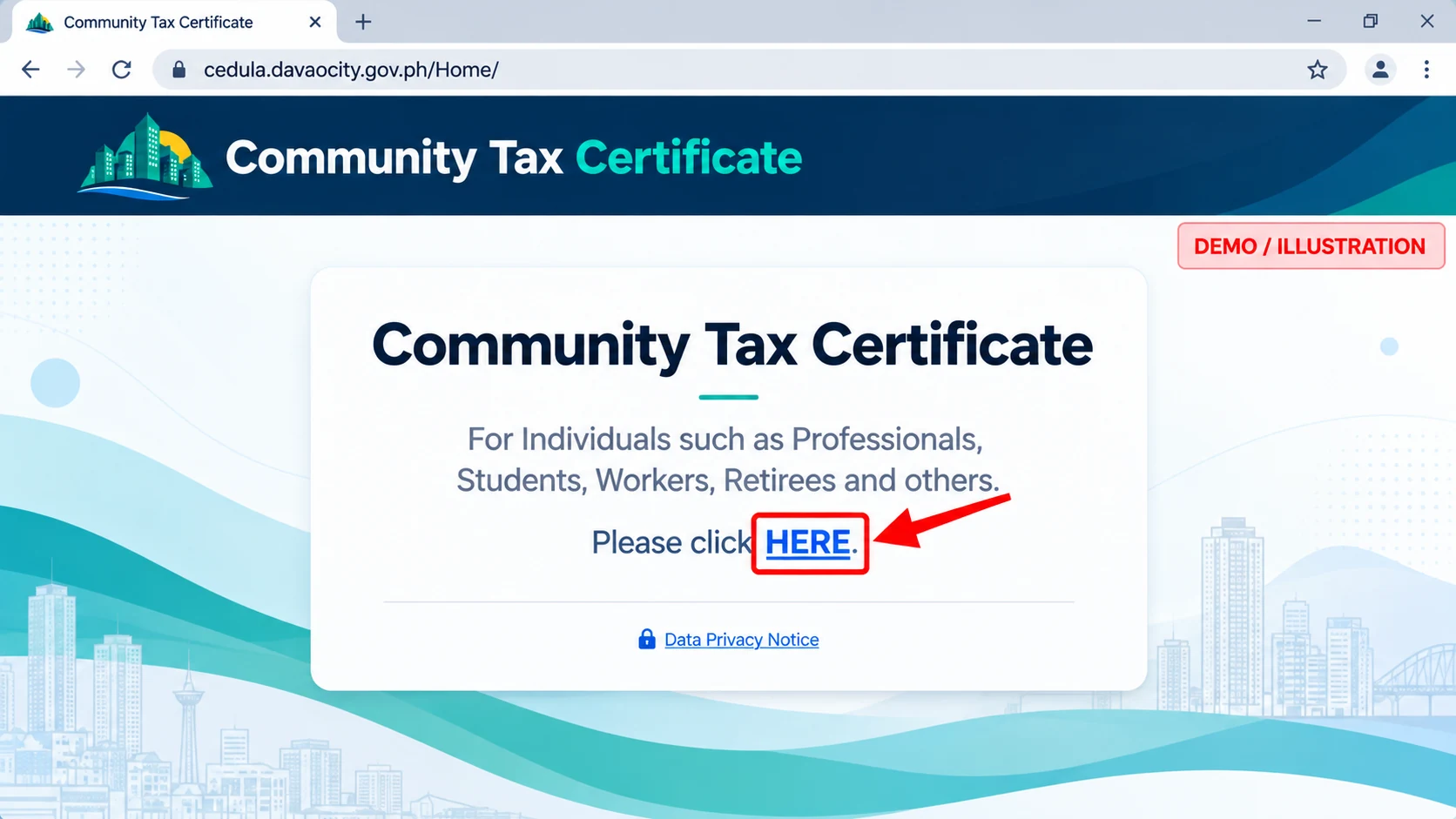
Open the Official Davao City Cedula Portal
Visit the official Davao City Cedula website. Look for the individual application option on the landing page.
The portal provides an entry link for applicants such as students, workers, professionals and retirees.
Select the Individual Application Link
On the landing page, select the HERE link for individual applicants. Follow the official instructions to continue.
Read the Data Privacy Notice
Review the official Data Privacy Notice before providing your personal information. Make sure you are using the authorized government website.
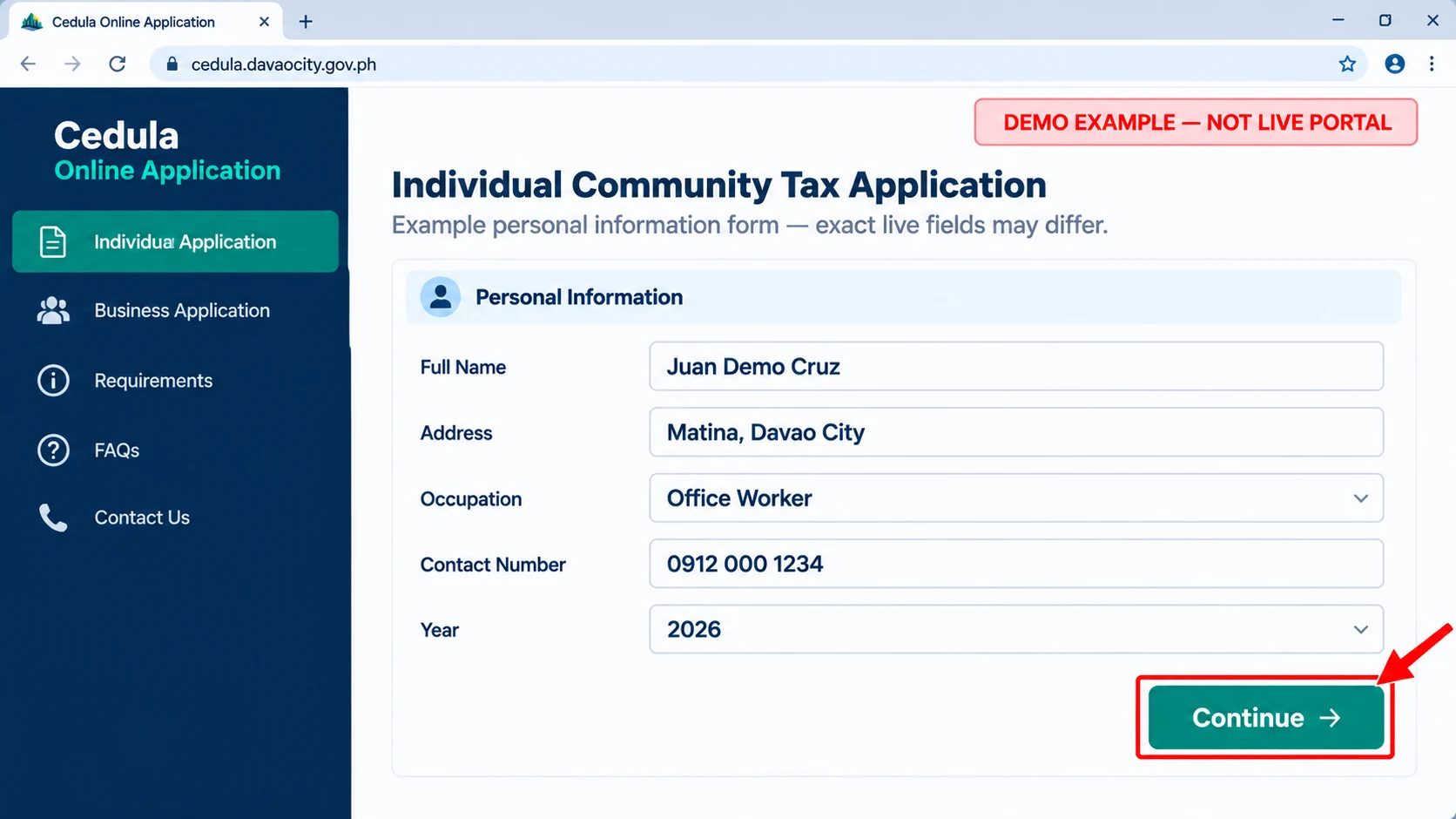
Enter Your Personal Information
Complete the individual application form using your correct personal details.
Enter your name, address and any additional information requested by the live system.
Review all entries carefully before moving to the next stage. The accompanying demo form is illustrative and may not show every live field.
Provide Occupation and Income Details
If requested, enter your employment, occupation, business or income information accurately. Such details may be relevant to your Community Tax assessment.
Review Your Application Information
Check your name, address and any declarations before proceeding. Correct errors while the form allows editing.
Complete the Online Application
Follow the remaining prompts on the government website and complete the online entry. An online submission does not automatically mean your Cedula has been issued.
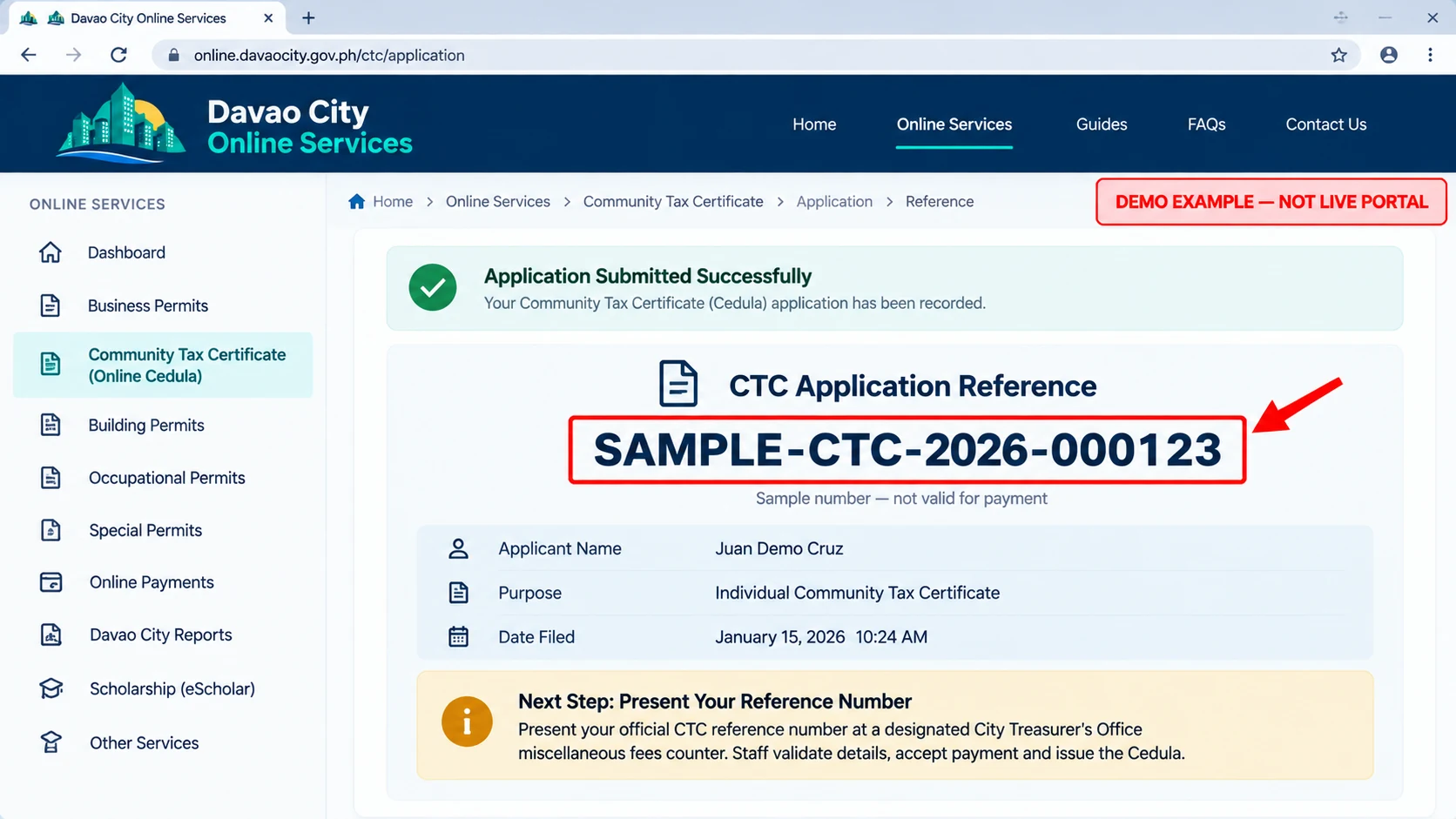
Save Your CTC Reference Number
After completing the online entry, obtain the CTC Reference Number provided by the official portal.
Save the number carefully. It is used during the next stage of the process at the City Treasurer’s Office.
The number displayed in the example image is fictional and cannot be used for payment.
Prepare for the Treasurer’s Office Visit
Keep your genuine reference number and applicable identification or tax-related documents ready. Follow the government instructions for the designated collection counter.
Present Your CTC Reference Number
Present the official reference to the authorized City Treasurer personnel. Your application information can then be checked for assessment and processing.
Pay the Assessed Community Tax
Pay the amount officially assessed through the authorized collection channel. The amount can vary depending on applicable tax rules and the applicant’s circumstances.
The published 2026 Citizen’s Charter documents counter-based payment. Do not assume an instant online payment option is available.
Receive and Check Your Cedula
Once the official payment and issuance process is complete, collect your Community Tax Certificate as instructed.
Check your name, tax year and identifying details carefully. Keep the document in a safe place for future use.
Fees and Processing Information
Community Tax is assessed under the applicable Davao City Revenue Code. The amount is not necessarily the same for every applicant.
The 2026 Citizen’s Charter lists processing stages for the online application and Treasurer’s counter. Actual waiting time may vary.
Confirm current requirements, fees and collection arrangements through official government channels.
Common Problems and Useful Solutions
- Incorrect personal information: Check your details before submission and request official correction guidance when necessary.
- Reference number not received: Make sure the online process was completed successfully.
- Payment instructions unclear: Contact the City Treasurer’s Office for the authorized method.
- Website not opening: Try accessing the Cedula service through the official Davao City Online Services directory.
Ready to Apply for Your Cedula?
Start on the official government website and follow its current instructions. The City Treasurer’s Office handles applicable assessment, collection and issuance.
Official reference: Davao City Citizen’s Charter 2026 . You can also explore our Davao City Online Services section above.
Find the Government Service Guide You Need
Government services in Davao City cover business permits, civil records, social assistance, property matters, education and employment.
Select a category below to find related services, understand the requirements and follow practical instructions. Each complete category guide brings its important topics together on one page.
Business Permits & Licensing
Starting a business or renewing an existing permit? Learn how to prepare documents, apply through the proper system, handle assessed fees and monitor an application.
Civil Registry Services
Find guidance for birth registration, marriage licenses, death registration and corrections to civil records. Understand which documents you may need and how the City Civil Registrar handles different requests.
Social Services & Assistance
Explore local assistance programs and citizen identification services. Learn about eligibility, supporting documents and the offices responsible for applications and assessments.
Building, Property & Payments
Understand building and occupancy permit services, property-related requirements and available city payment procedures. Find the correct official channel before making a transaction.
Education, Jobs & Citizen Support
Get guidance on Davao City scholarship applications, employment opportunities, PESO services and official reporting channels. Learn where to apply, submit requests and find updates.
Need Help With an Online Application?
You can also return to these step-by-step guides already covered on this homepage.
Find Official Forms, Documents & Support
Looking for a government form, service requirement, or the right office to contact? Davao City provides official documents and public information through its government website and department directories.
Use the resources below to verify requirements, download available forms, and contact the appropriate office before visiting or applying.
Official Documents & Forms
These resources can help you check application procedures, required documents and relevant government records.
Citizen’s Charter 2026
The official service handbook explains government procedures, documentary requirements, processing information and applicable fees.
Government Forms & Reports
Browse the City Government’s published forms and reports. Check which document applies to your particular service before downloading it.
PSA Civil Registry Forms
Find application forms for PSA birth, marriage, death and CENOMAR records. Follow the issuing agency’s instructions for actual requests.
Davao City Ordinances
Search local ordinances by number or title. Use the official legislative database when you need a specific city regulation.
Government Departments Directory
Find city offices, department names and available contact details. This is useful when you are unsure which office handles your application.
Three Things to Check Before Applying
Use the Latest Requirements
Check the current service instructions before preparing documents or paying fees.
Contact the Correct Department
Confirm the office, service location and applicable hours before making a visit.
Use Authorized Government Systems
Submit personal documents and make payments only through official channels.
Need Assistance From Davao City Government?
For general inquiries, contact the City Information Office. Service-specific concerns may need to be directed to the relevant department.
Need Emergency Assistance?
For medical emergencies in Davao City, the official Online Services website lists Central 911. Do not use ordinary application or complaint forms for immediate emergency assistance.
Looking for an application guide instead of official documents? Continue with the related homepage walkthrough.
Davao City Government Services FAQs
Have questions about Davao City online government services? Find clear answers about applications, scholarship programs, city reporting, Community Tax Certificates and official government resources.
Select a question below to read the answer. For actual transactions, always follow the instructions shown by the official government website.
General Online Services
Learn how to find authorized services, check requirements, and choose the correct government application.
Is DavaoCityPortal.org an official government website?
No. DavaoCityPortal.org is an independent informational website that explains Davao City government services.
It is not affiliated with or operated by the City Government of Davao. Official applications, fees, approvals and personal information must be handled through authorized government websites.
Where can I find official Davao City online services?
Visit the official Davao City Online Services directory .
It lists services such as business permits, occupational permits, building permits, Cedula applications, online payments, social assistance and citizen reporting.
Can every Davao City government service be completed entirely online?
Not necessarily. Some services support online applications, payments or document issuance, while others require office verification, physical documents or an in-person visit.
Check the current instructions for the specific service before assuming the entire process is digital.
How can I check the documents and fees required for a service?
Consult the official Davao City Citizen’s Charter and the instructions published by the responsible department.
Requirements, fees and processing arrangements differ by service and applicant circumstances. Confirm any updated requirements before applying.
How do I find the correct government office?
Open the official Government Departments Directory .
For example, business licensing is handled by the relevant business office, while Community Tax matters are handled by the City Treasurer’s Office.
eScholar & Educational Assistance
Understand scholarship registration, applications, document submission and important eligibility checks.
What is the Davao City eScholar portal?
eScholar is the online scholarship and educational assistance application platform of Davao City’s Educational Benefit System Unit (EBSU).
Applicants can use the official system to register, complete application information and submit supporting documents.
How do I start an eScholar application?
Open the official eScholar portal .
Register an account if you are a new applicant. Then follow the application form, complete the required information and submit the requested documents when applications are open.
What scholarship programs are available through EBSU?
The eScholar portal describes programs including STEP, STEP-FA, SEAP, Lumad Assistance, Medical and Law scholarships, and technical or vocational educational support.
Availability and eligibility depend on the current official program announcements.
Does creating an eScholar account guarantee a scholarship?
No. Registration only provides access to the application process. Applicants must satisfy the relevant qualifications, complete their submissions and undergo the official evaluation and approval process.
How can I know when scholarship applications are open?
Check official announcements from the City Government of Davao and EBSU, together with notices inside the eScholar application portal.
Scholarship application periods can change. Do not assume that dates from a previous school year still apply.
Davao City Reports
Learn how to submit community concerns, provide important details and monitor an existing report.
What is Davao City Reports used for?
Davao City Reports is an official government platform for complaints, concerns, requests, inquiries and expressions of appreciation related to Davao City.
It helps residents communicate concerns so they can be validated and referred to the appropriate government office.
Do I need to register before submitting an online report?
Yes, the web application includes an account registration process.
Visit Davao City Reports and follow the registration instructions before filing your concern through the online reporting form.
What information should I include when submitting a report?
Provide a clear subject, a detailed explanation of the concern and an identifiable location.
Include the relevant date, time, nearby landmarks and supporting evidence when available. Accurate information helps the concerned office review the issue.
How can I track a report I already submitted?
Return to the official Davao City Reports website and use its View Transaction option.
Keep the report’s genuine reference number if one was issued, and follow the portal instructions to review the current report information.
How long does it take to receive an update on a report?
In its published explanation of the reporting app, the City Government stated that updates may be sent by email within three to five days.
This is not a guaranteed time for complete resolution. Actual handling depends on the concern and the responsible office.
Cedula, Documents & Official Help
Find information about Community Tax Certificates, online applications, assessments and government support resources.
What is a Cedula or Community Tax Certificate?
A Cedula is a Community Tax Certificate issued through the local government under applicable Community Tax rules.
It may be requested for certain transactions requiring proof of Community Tax payment or related identification.
Where can I apply for a Davao City Cedula online?
Begin at the official Davao City Cedula website .
Choose the appropriate individual application option, enter the information requested and follow the current government instructions.
Can I complete my Cedula payment and issuance entirely online?
The official Online Services directory advertises online payment and download capabilities for Cedula. However, the published 2026 Citizen’s Charter also documents an assessment, payment and issuance stage through the City Treasurer’s counter.
Follow whichever instructions the live portal currently provides and confirm the applicable arrangement with the City Treasurer’s Office.
What documents do I need for a Cedula application?
Requirements depend on your applicant category. Relevant documents may include valid identification, employment or income records, and other supporting Community Tax documents.
Consult the official Citizen’s Charter or contact the City Treasurer’s Office before visiting.
Where can I get help if my application is not working?
First, check the instructions and notices on the official service website. If the problem continues, contact the department responsible for your application.
For general City Government inquiries, the official contact number is (082) 241-1000. You can also use the government departments directory to locate the correct office.
Still Have Questions About a City Service?
Requirements and application procedures may change. For the latest official information, visit the City Government of Davao website or contact the department responsible for your transaction.
DavaoCityPortal.org is an independent informational guide and is not affiliated with the City Government of Davao. The official government websites remain the authoritative sources for applications, fees, requirements and approval decisions.